
How to Install Downloader App on FireStick
If you want to sideload apps on your Amazon FireStick, the Downloader app is one of the most useful tools available. It allows you to download files directly from the internet, making it easy to install third-party apps, APKs, and streaming utilities. In this guide, you’ll learn how to install Downloader on FireStick quickly and safely.
What Is the Downloader App?
Downloader is a popular application designed specifically for Amazon Fire TV devices. It enables users to download files from websites directly onto their FireStick. The app includes a built-in browser and file manager, making it a convenient solution for installing APK files and accessing web content.
Key Features of Downloader
- Direct file downloads from URLs
- Built-in web browser
- Easy APK installation
- User-friendly interface
- Free to download and use
Install Downloader in a Few Simple Steps
The Downloader app allows you to download APK files directly on your FireStick. Since TiviMate is not available on the Amazon App Store, you need Downloader to sideload and install the app safely on your device.
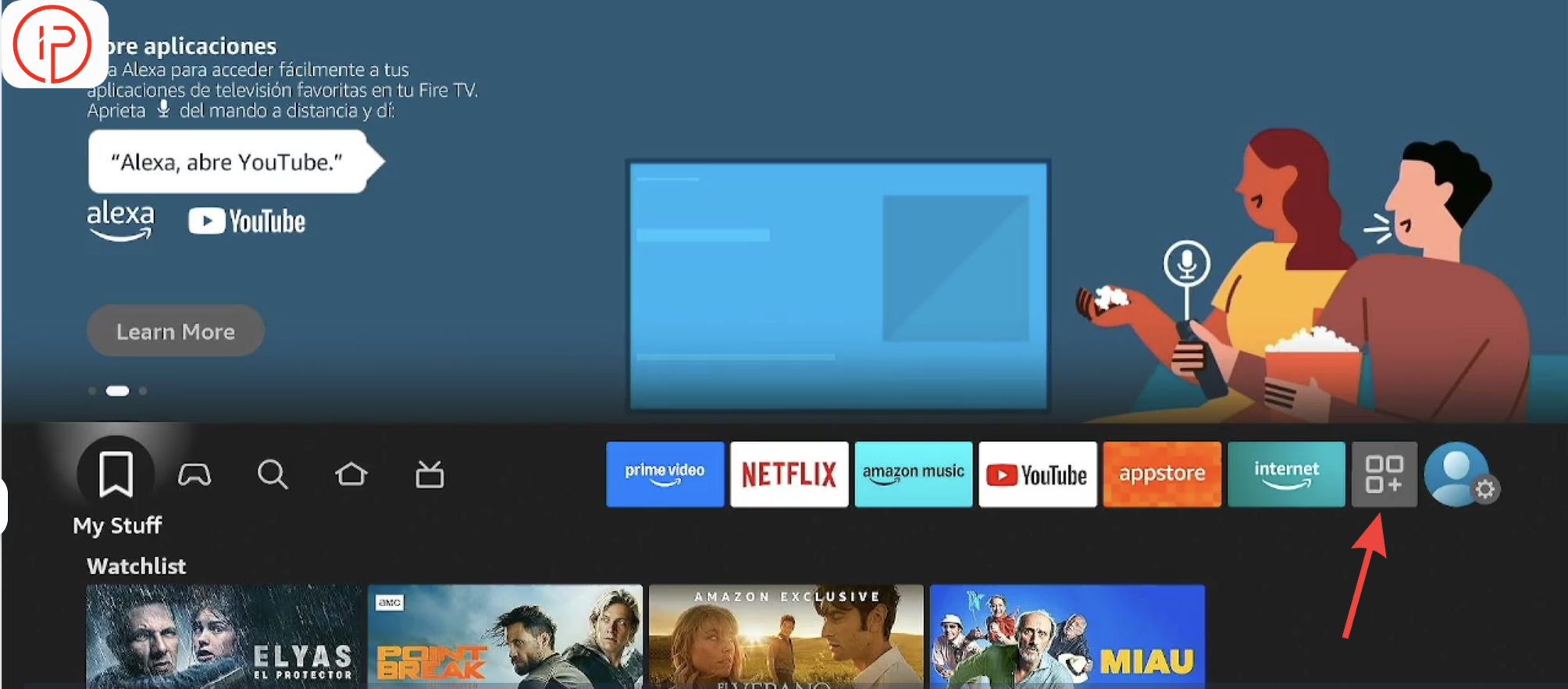
2. Select Get More Apps.
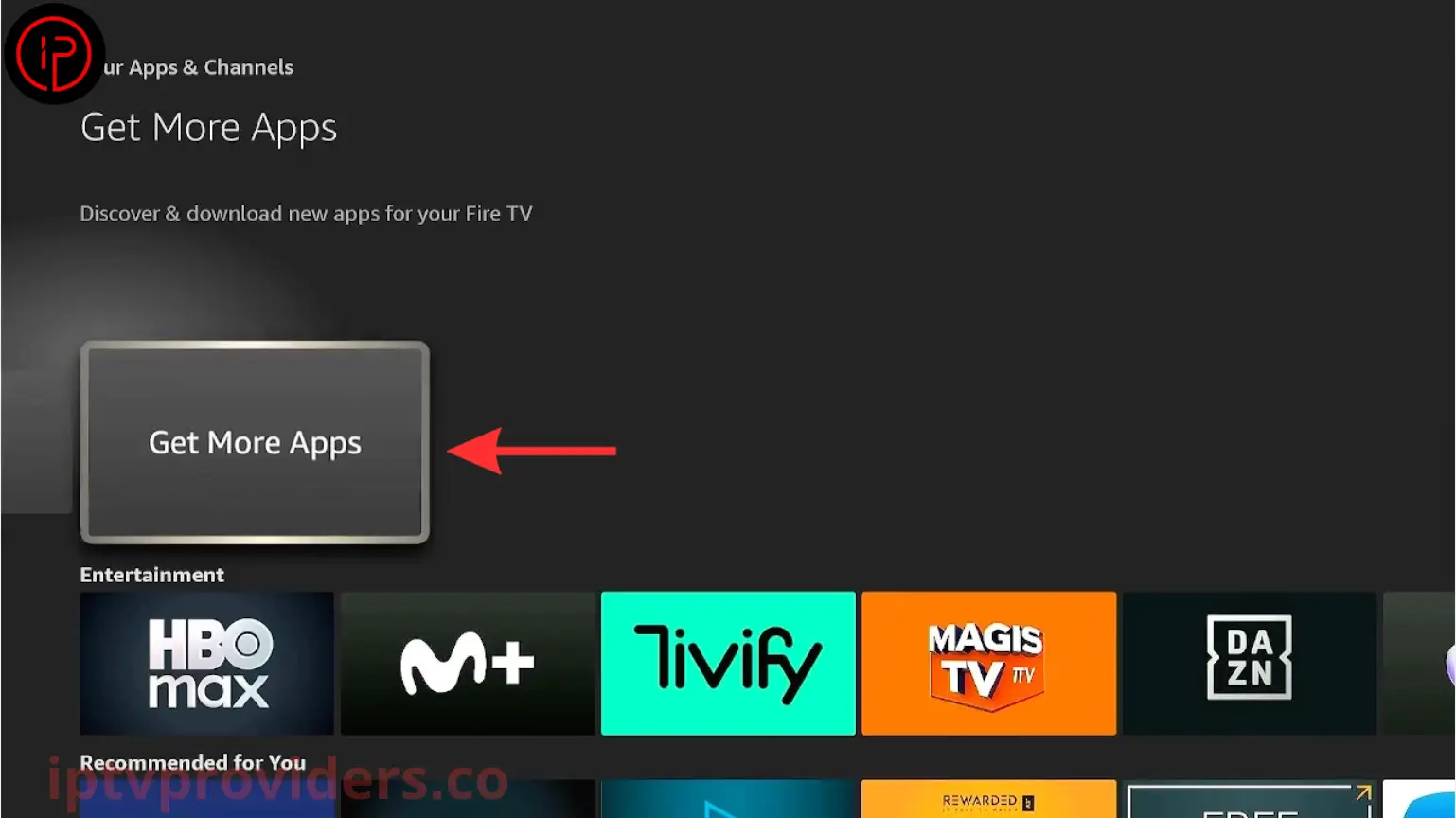
3. Select the Search option
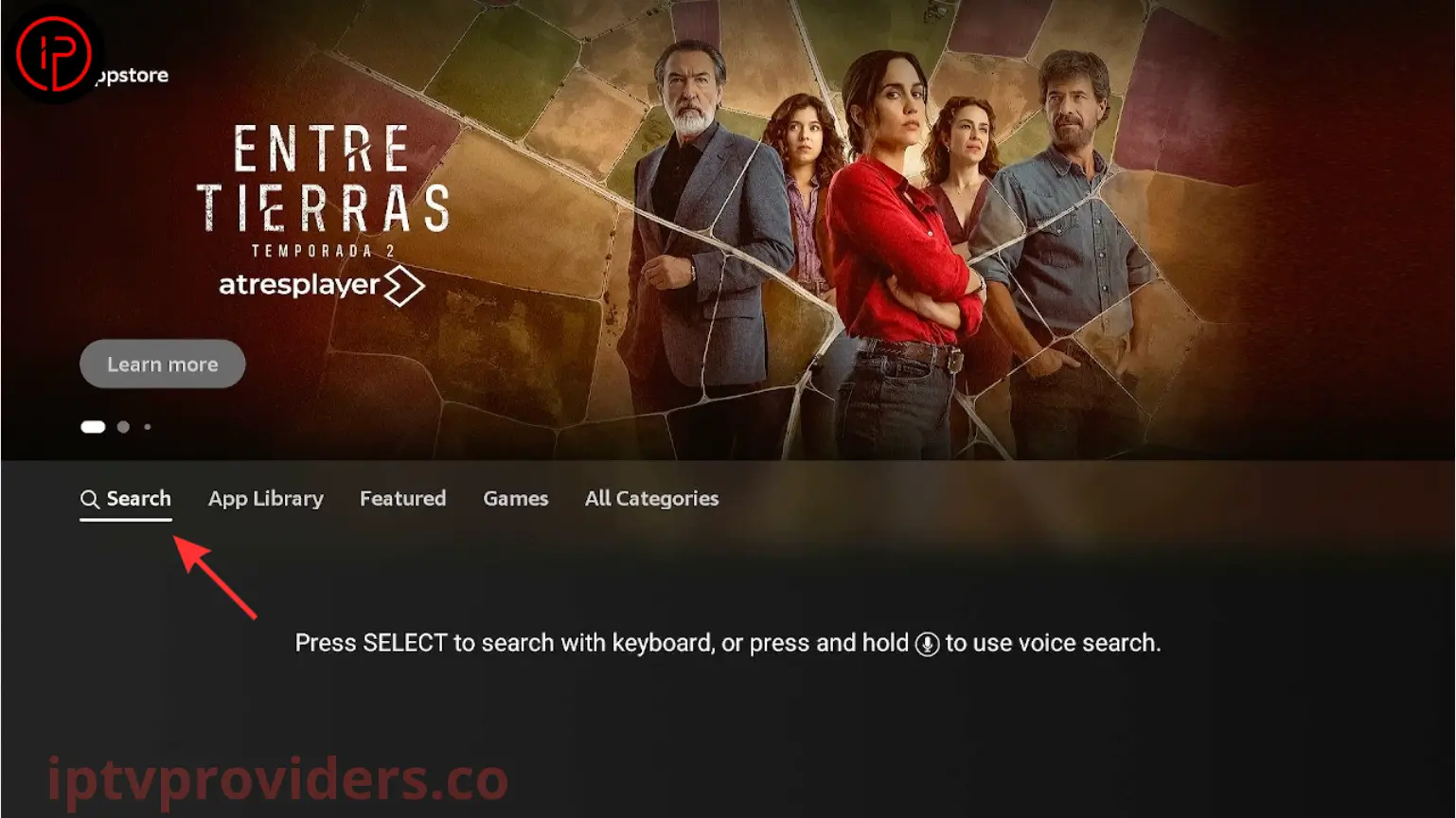
4. Search for the Downloader app.
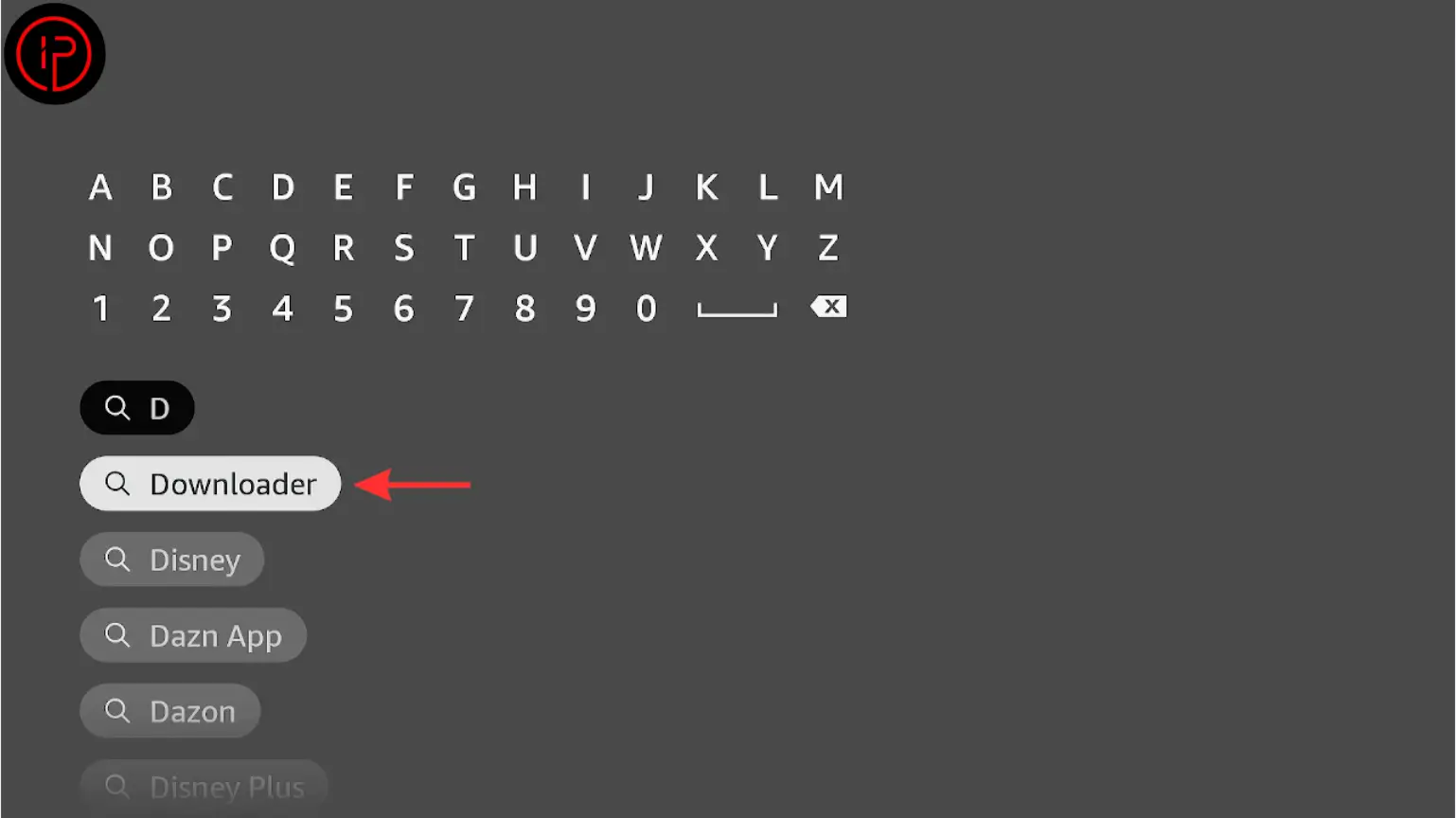
5. Choose the first Downloader app from the search results.
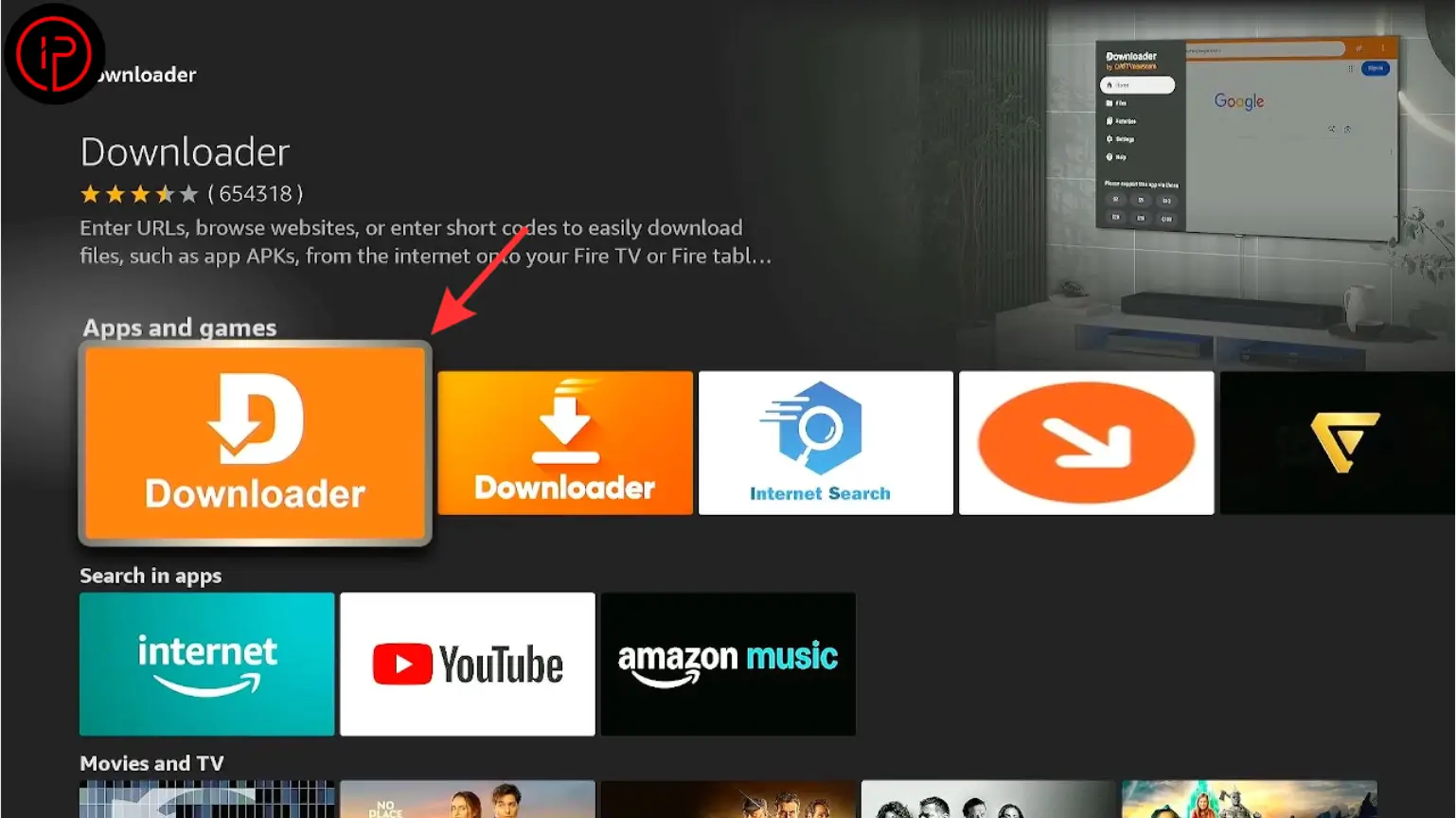
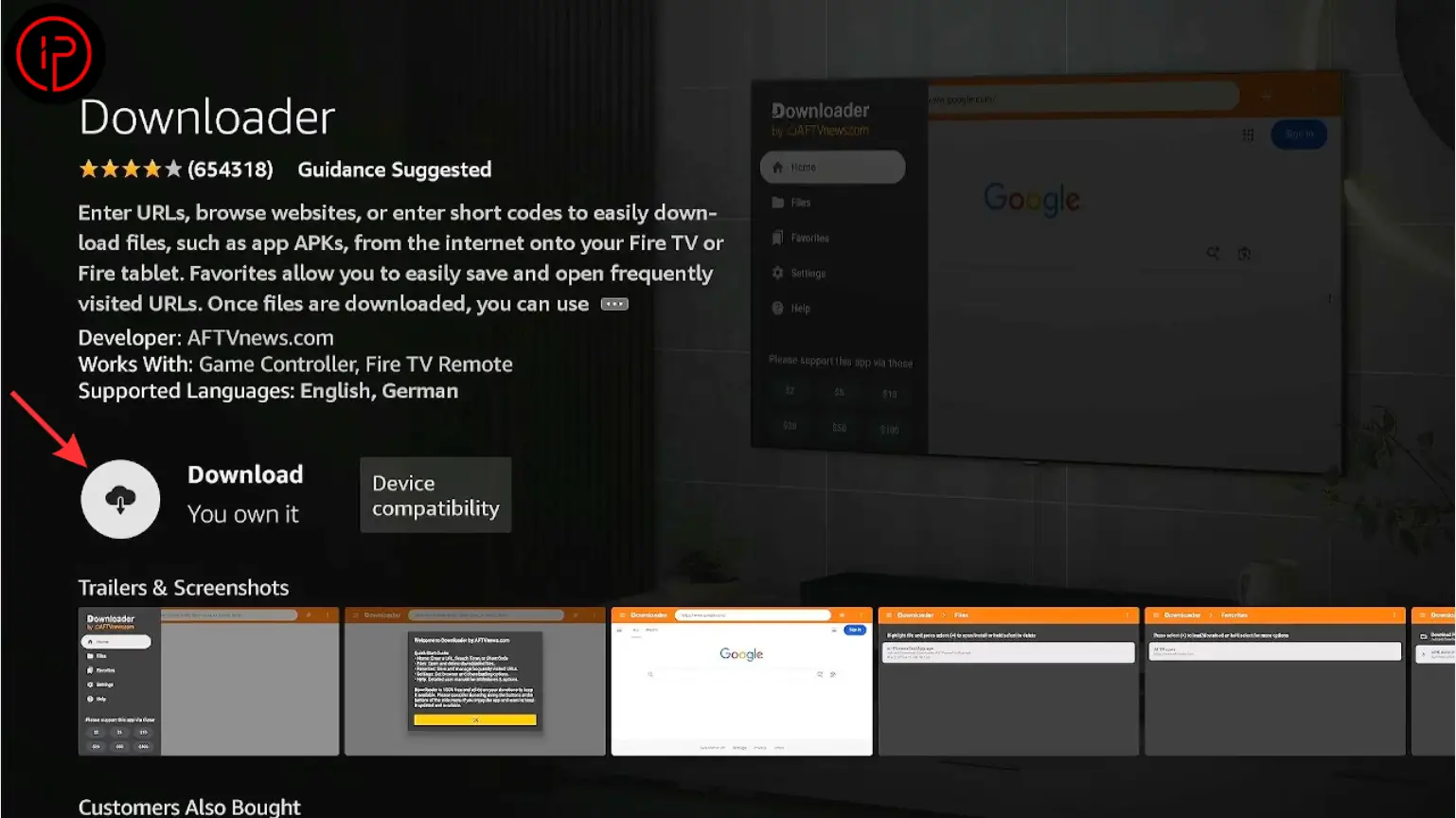
6. Press the Download button to install the app.
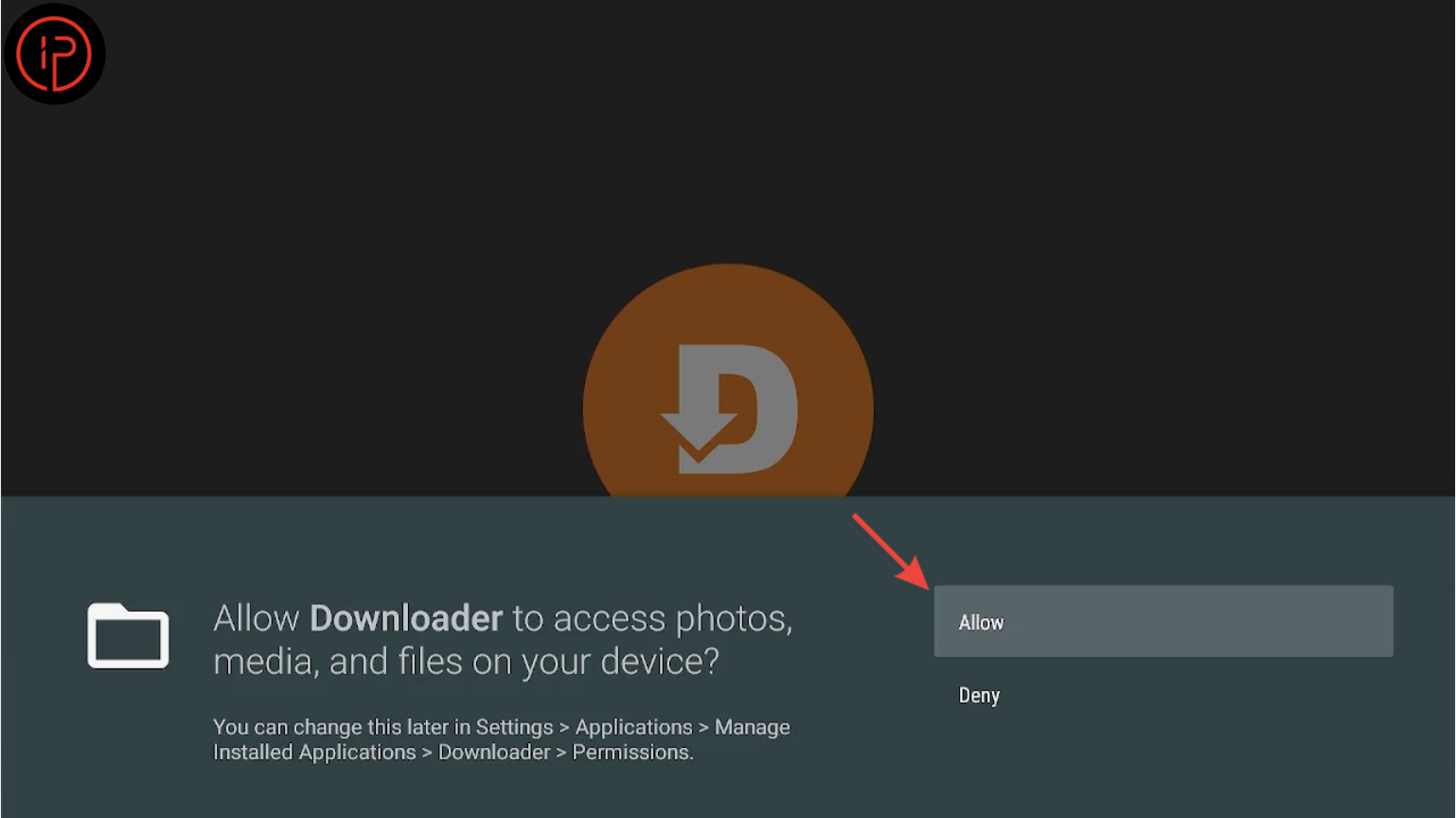
7. After installation, press Allow when prompted.
8. Congratulations! The Downloader app has been installed successfully.
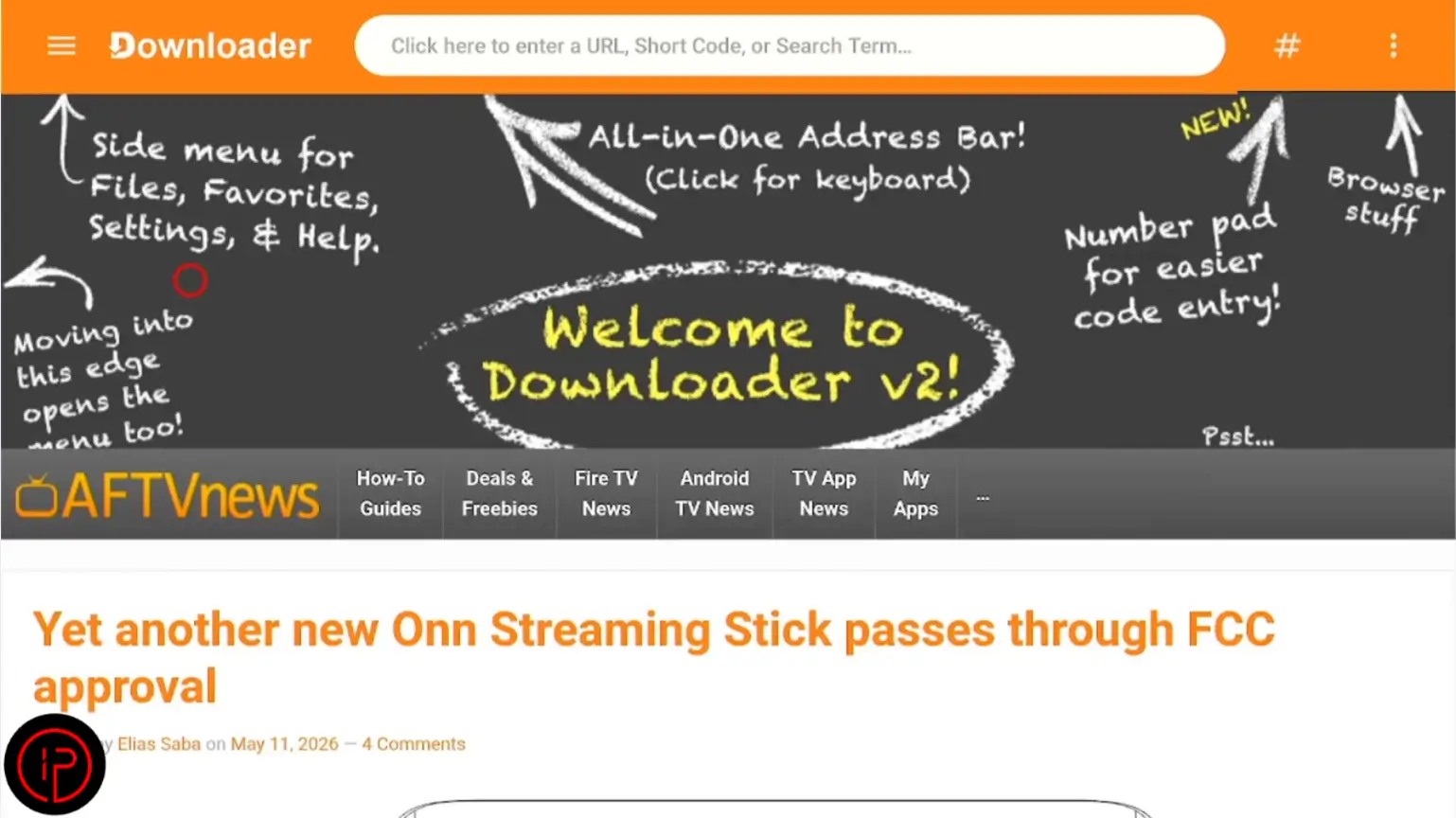
Watch Our Video Tutorial:
How to Install Downloader on Firestick
How to Install IPTV Apps Using Downloader
Learn how to install your preferred IPTV app on FireStick using the Downloader app. Simply enter the APK download URL, download the installation file, and follow the on-screen prompts to complete the setup in just a few minutes.
Ibo Player
8K App
8K App is a feature-rich IPTV player that offers a smooth streaming experience for live TV, movies, and series. It supports high-quality playback, easy playlist integration, and a user-friendly interface across multiple devices.
IPTV Smarters Pro
Tivimate
TiviMate is another powerful IPTV player known for its modern interface and smooth streaming performance. It supports live TV, movies, series, EPG integration, and customizable playlists, making it one of the top choices for IPTV users on FireStick and Android TV devices.
Frequently Asked Questions
To get started, open the search feature on your FireStick home screen, find the application in the Amazon App Store, and install it like any other app. Once installed, you can launch it, grant the necessary permissions, and begin downloading files directly to your device.
The application itself is widely used by Fire TV users and is available through Amazon's official marketplace. Safety largely depends on the websites and files you choose to access. Always download content from reputable sources and avoid unknown links that could contain harmful or modified files.
Several factors can cause issues, including a poor internet connection, insufficient storage space, outdated Fire OS software, or temporary system glitches. Restarting the device, clearing the app cache, and checking for software updates can often resolve common problems.
Yes, everything can be done directly on your FireStick. You can enter website addresses, browse the web, download installation files, and complete app installations without needing a PC, smartphone, or any additional hardware.
If an installation fails, verify that your FireStick settings allow app installations from external sources. You should also confirm that the file is compatible with your device, has downloaded completely, and is not corrupted. Re-downloading the file and restarting the device can often fix installation errors.