
Install and Activate IBO Player on FireStick in 4 Steps
If you want to stream live TV channels, movies, series, and sports on your Amazon FireStick, IBO Player is one of the most popular IPTV player applications available today. It offers a smooth interface, fast performance, support for M3U playlists, Xtream Codes integration, and compatibility with various IPTV services.
In this comprehensive guide, you’ll learn how to install and activate IBO Player on FireStick in just 4 simple steps. We’ll walk you through downloading the Downloader app, installing IBO Player, getting a reliable IPTV playlist, and adding your playlist to start streaming immediately.
What Is IBO Player?
IBO Player is a popular IPTV player that allows users to stream live TV, movies, and series using IPTV playlists from third-party providers. It supports M3U playlists and Xtream Codes, offers a user-friendly interface, and works on FireStick, Android TV, Smart TVs, and other compatible devices.
Main Features of IBO Player App
Here are some of the top features that make the IBO Player app popular among IPTV users:
- Support for M3U playlists and Xtream Codes
- Fast and smooth streaming performance
- Support for live TV, movies, and series
- Electronic Program Guide (EPG) integration
- HD, Full HD, and 4K playback support
Step 1: Install Downloader App on Firestick
If you haven’t installed the Downloader app on your FireStick yet, please visit this post for a complete step-by-step guide. You’ll learn how to download, install, and set up the app so you can easily install APK files and access additional content on your device.
Step 2: Install IBO Player
Once Downloader is installed, you can use it to download and install the IBO Player app on your FireStick in just a few minutes.
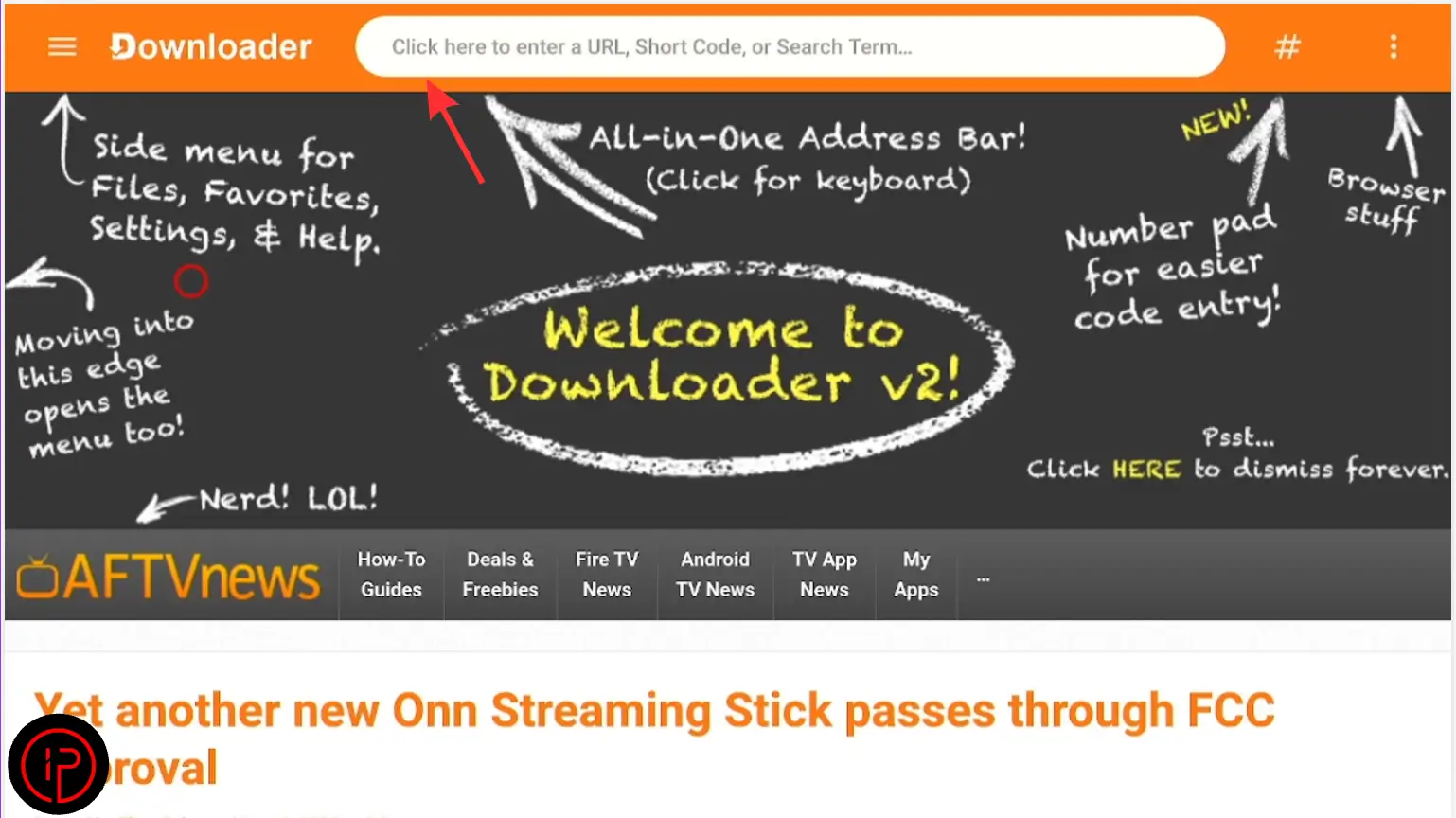
1. Open the Downloader app and click the search bar.
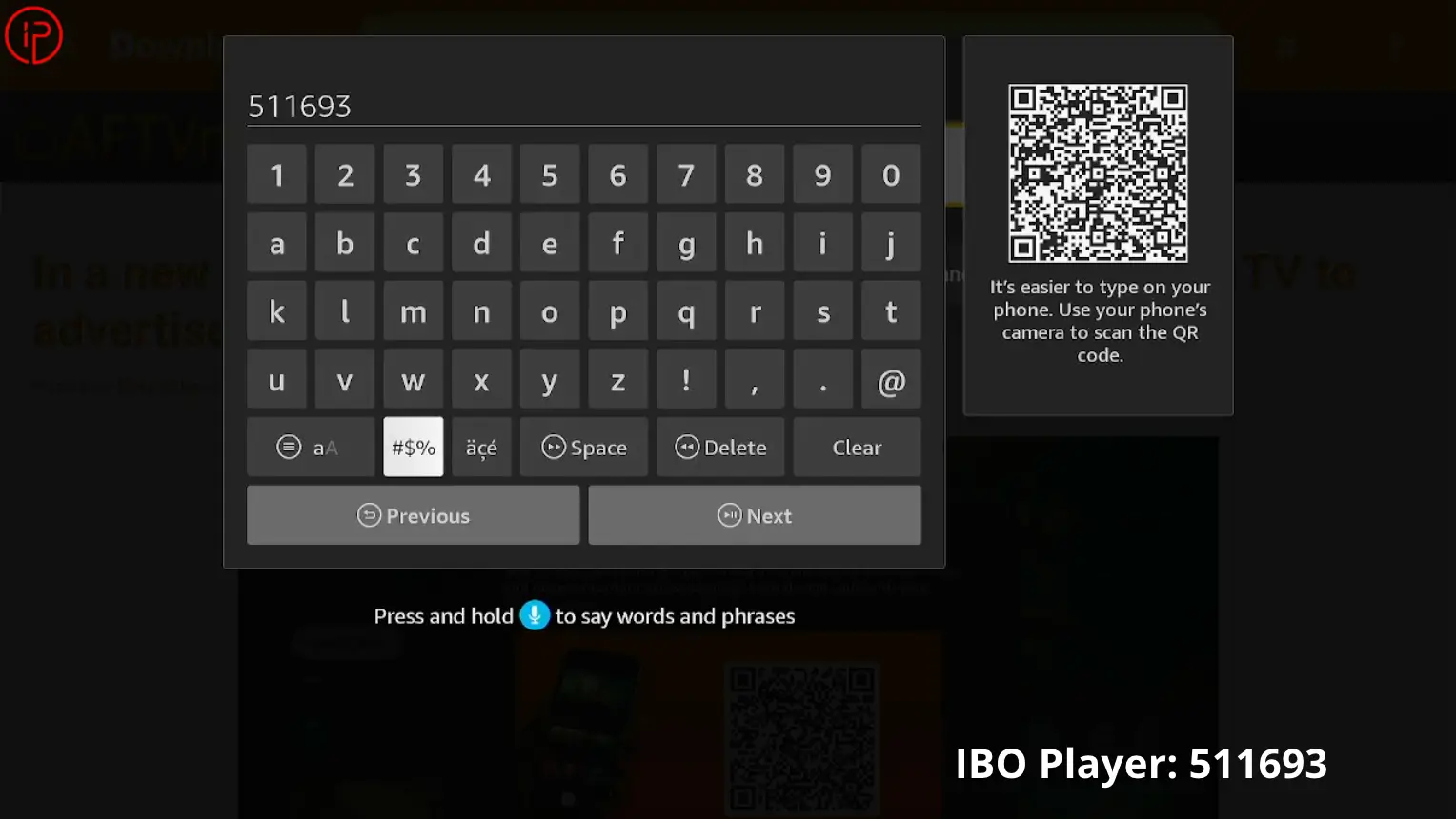
2. Enter the Downloader code 511693 and press Continue.
3. Wait a few moments for the download to complete.
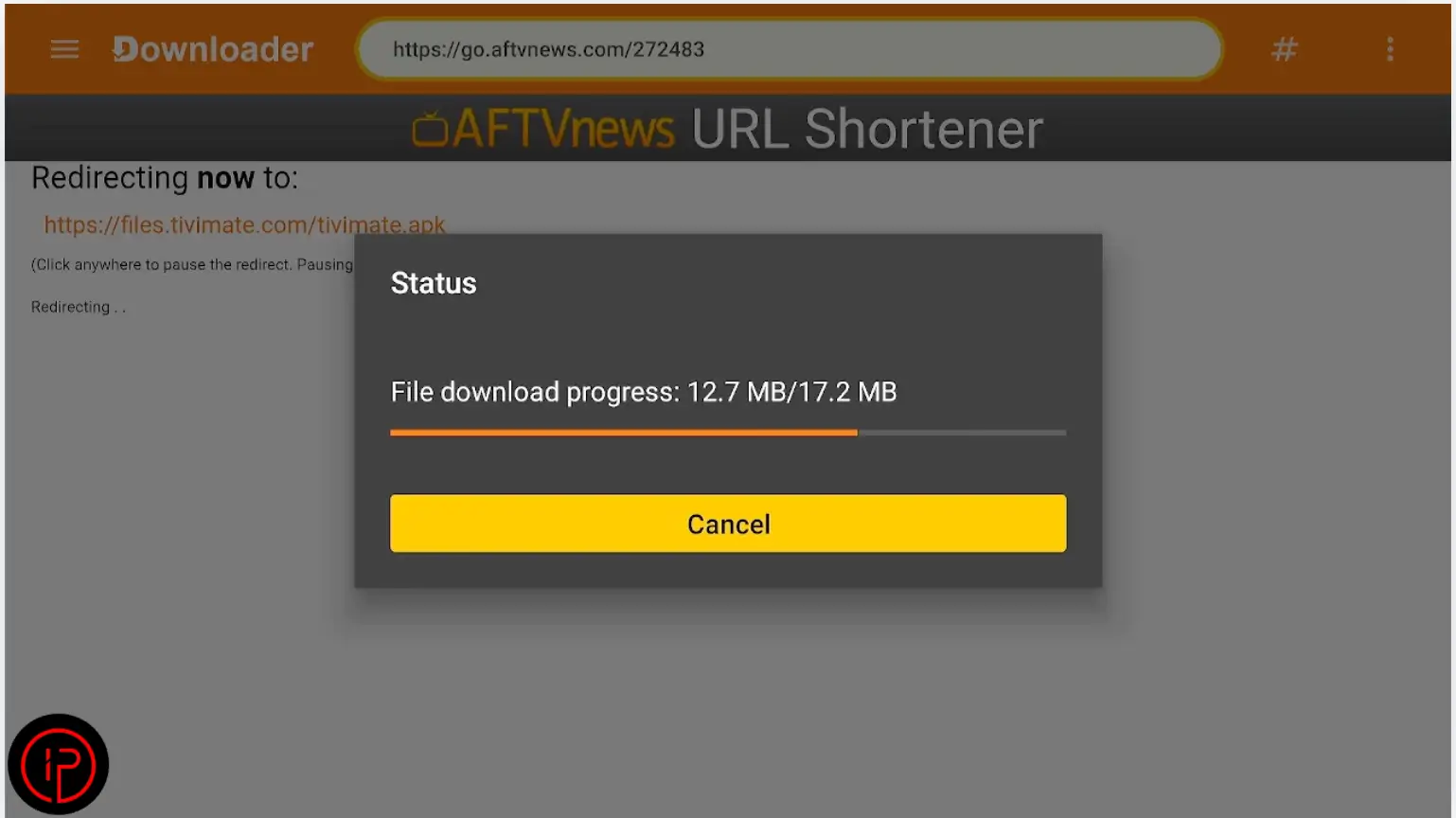
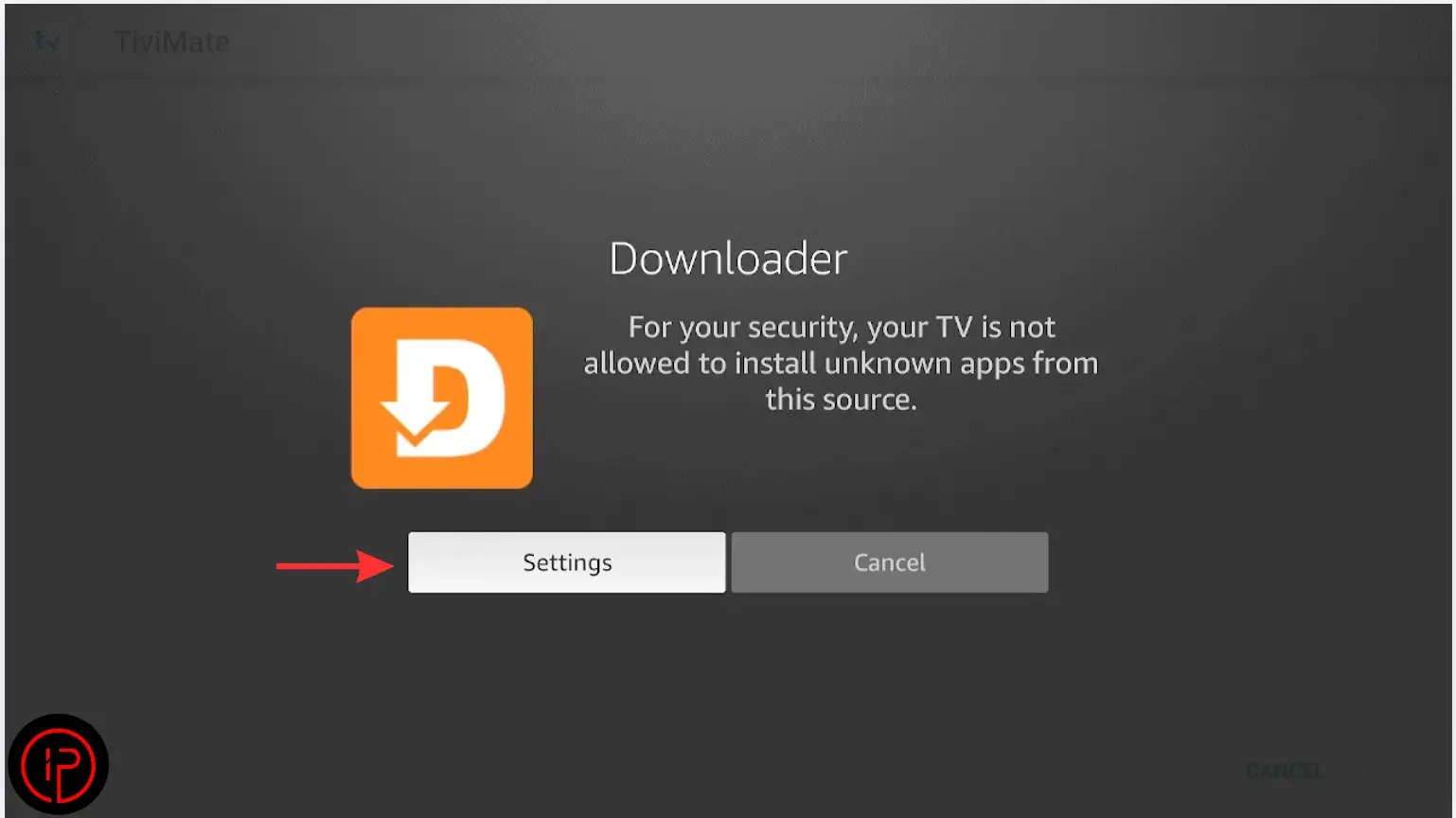
4. Then press Settings.
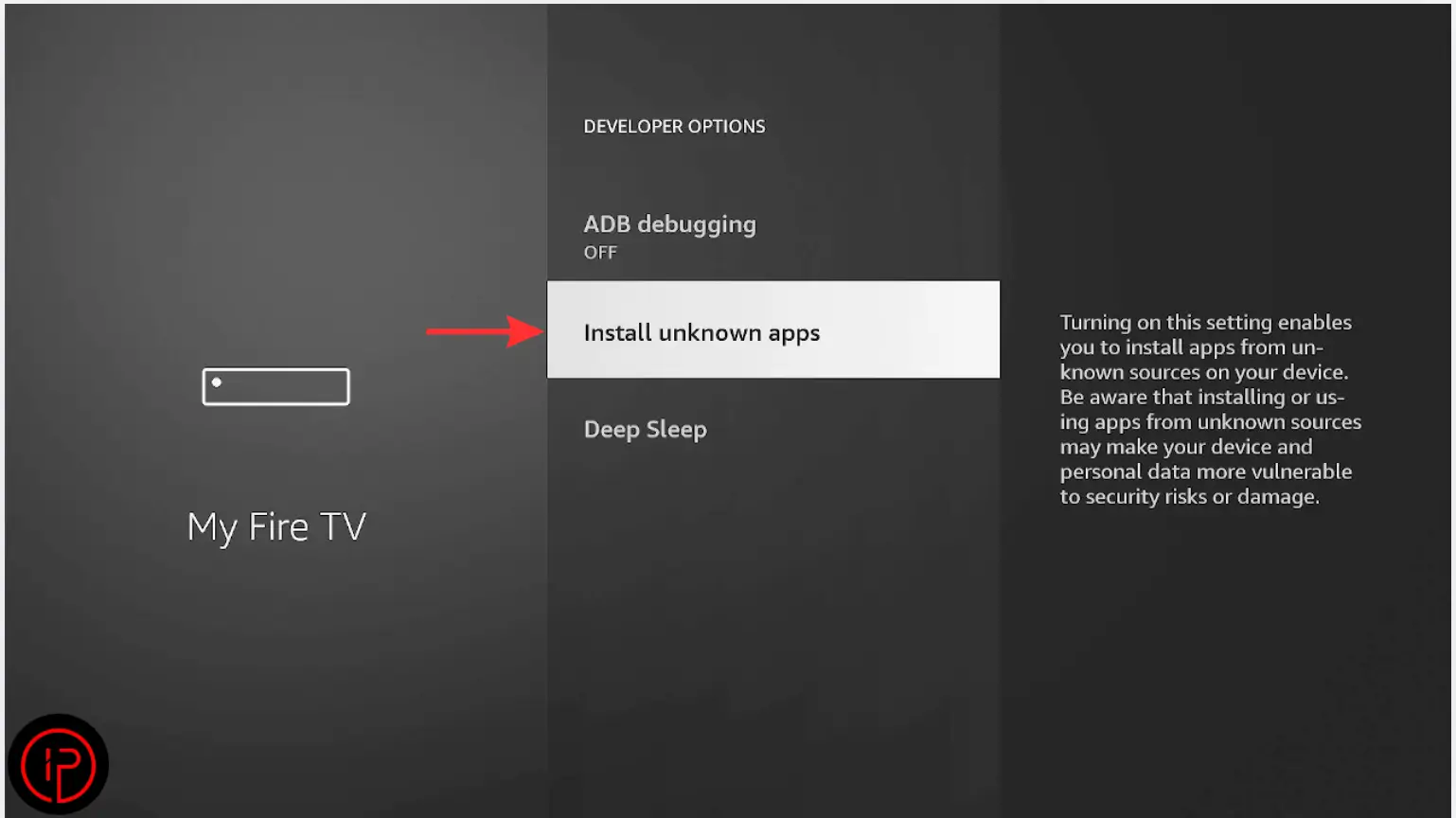
5. Press Install Unknown Apps.
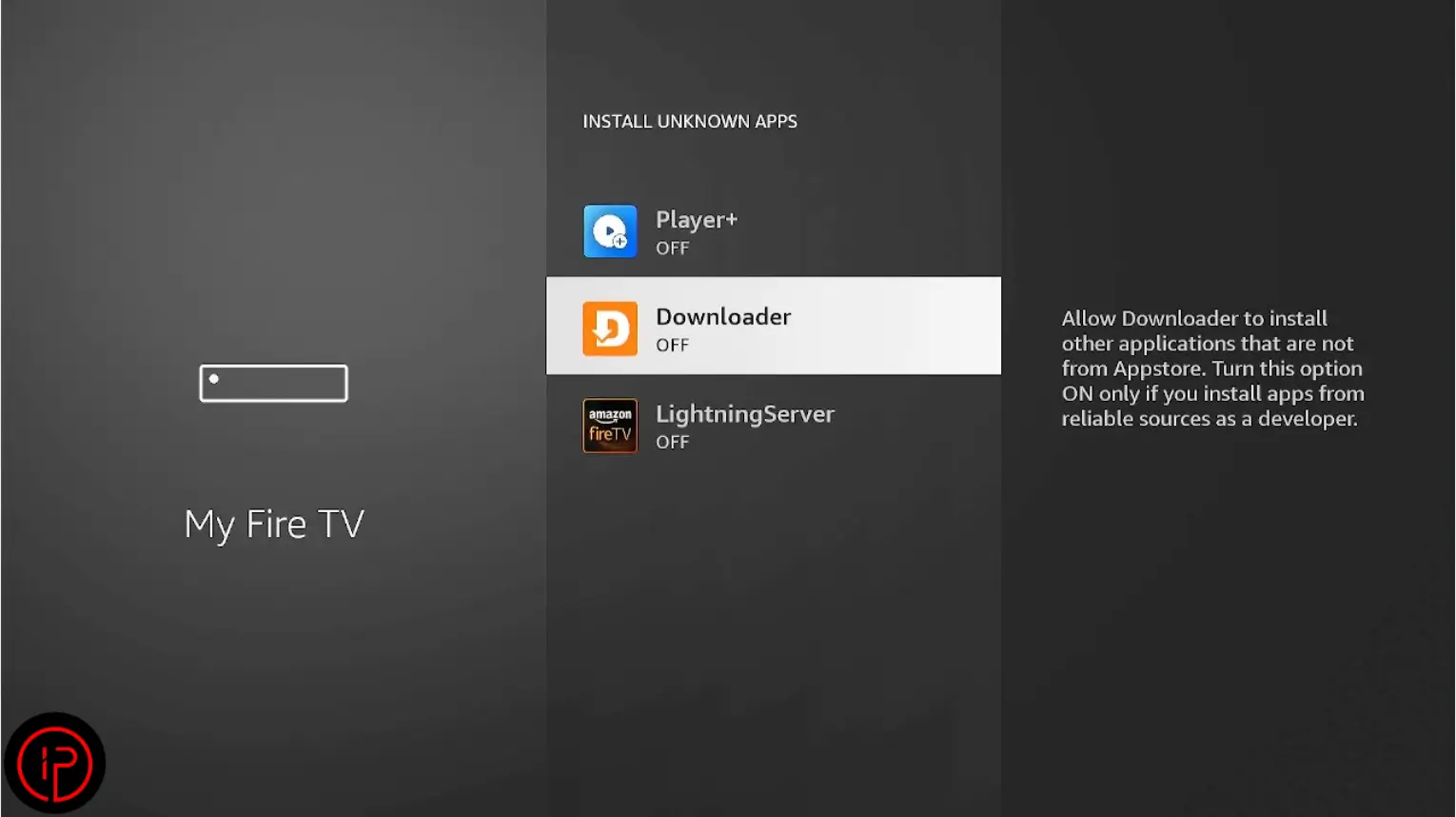
6. Find the Downloader app.
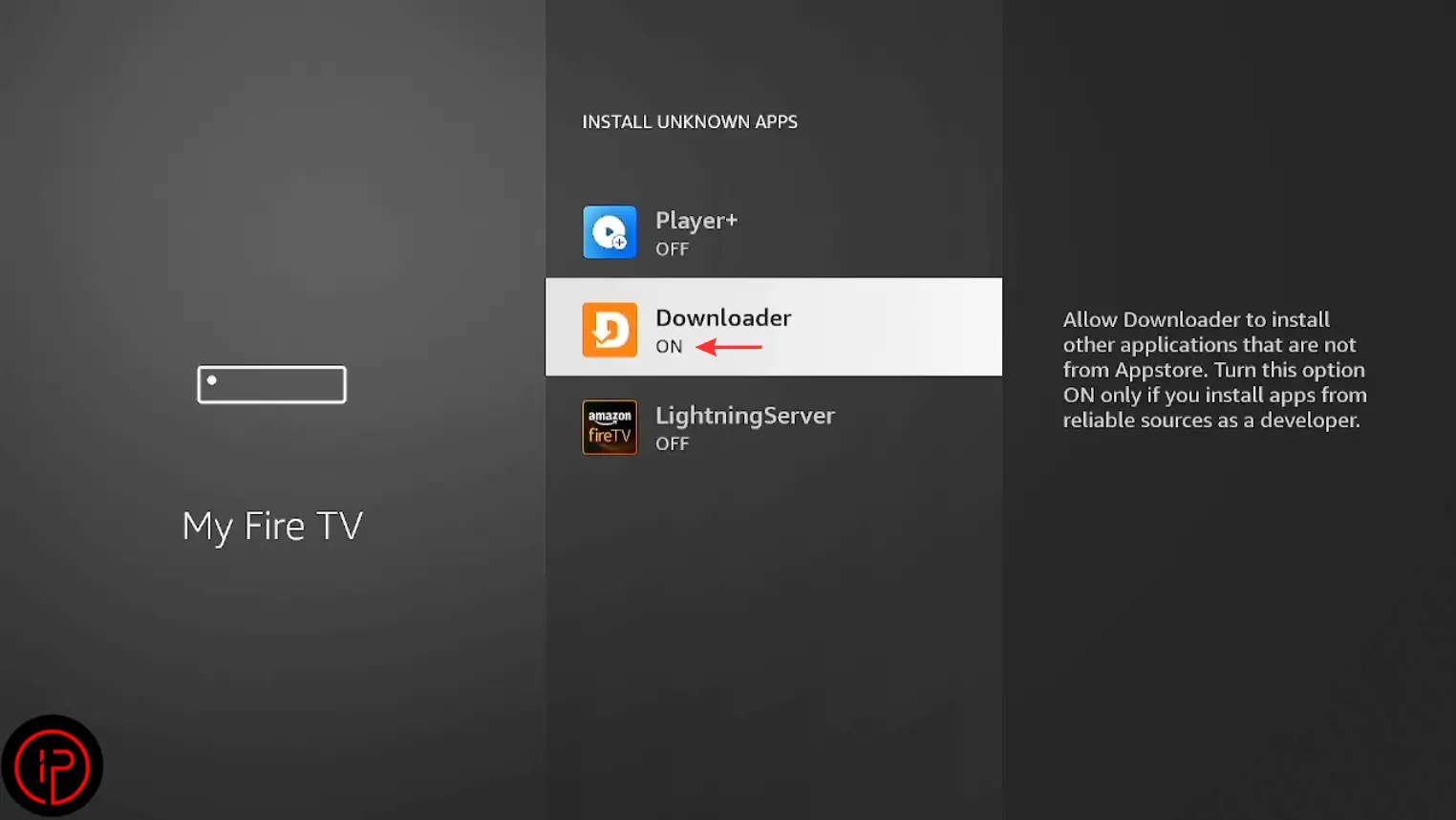
7. Change it from Off to On.
8. Press Install.
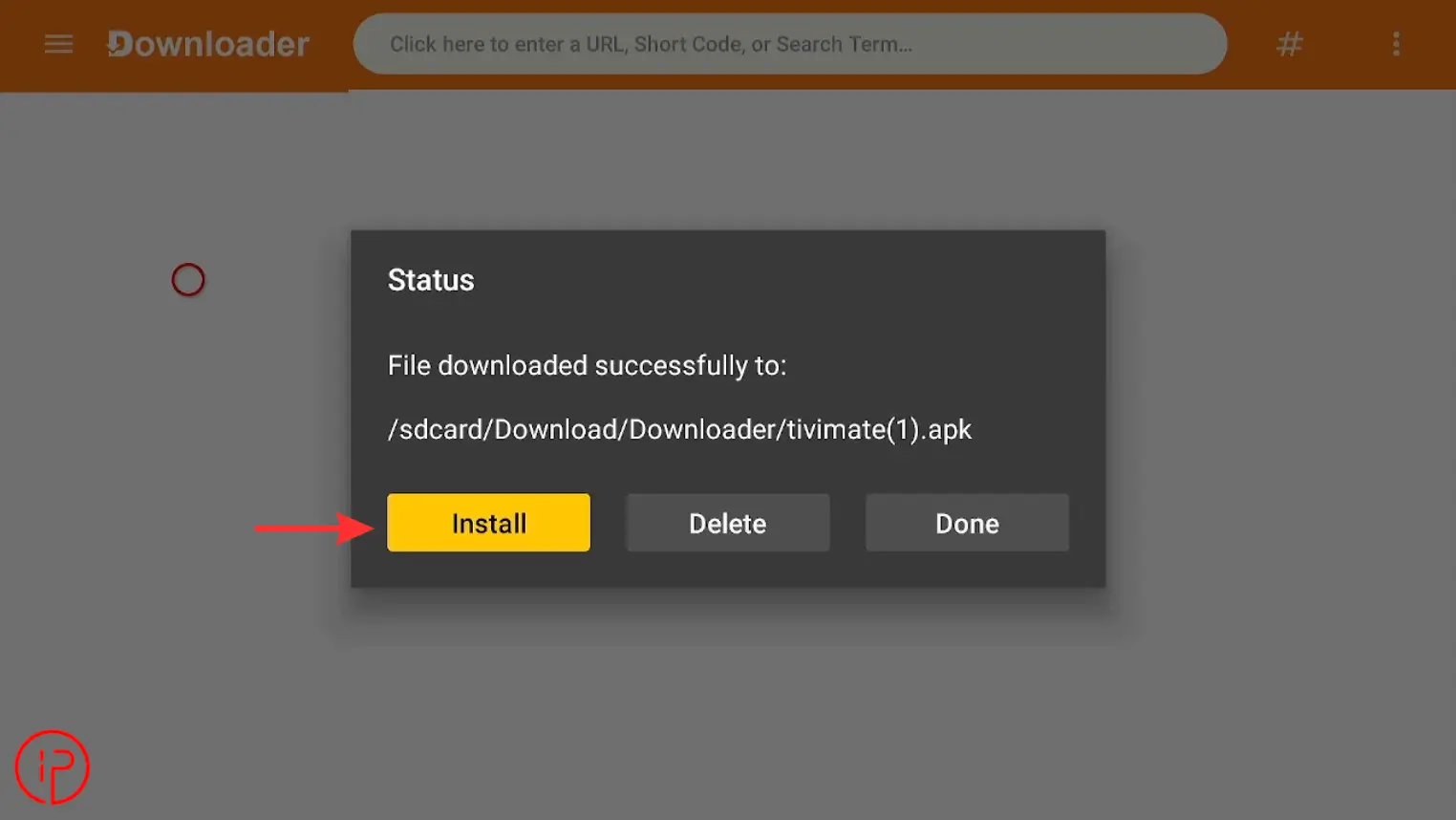
9. Press Install again to continue.
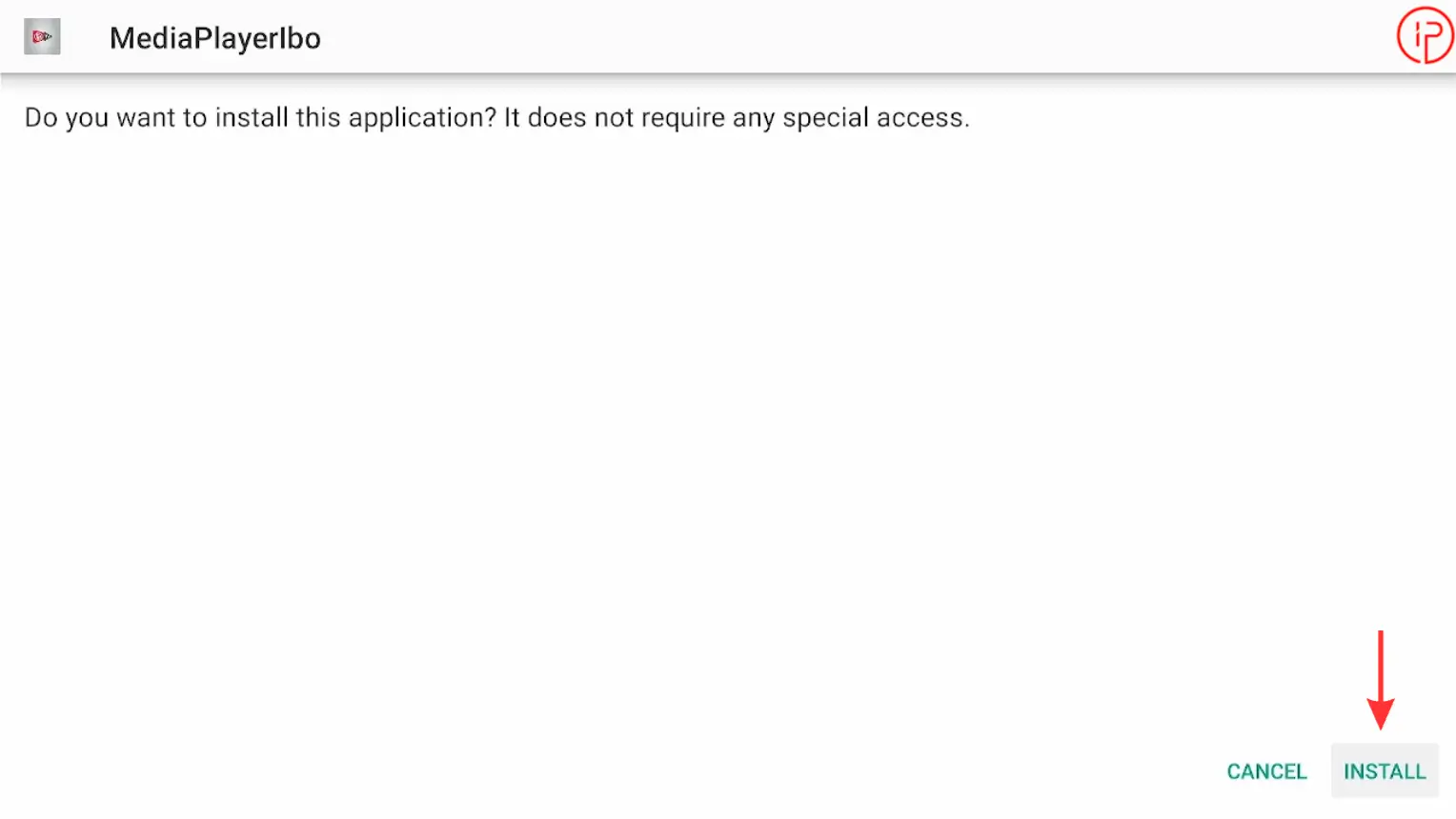
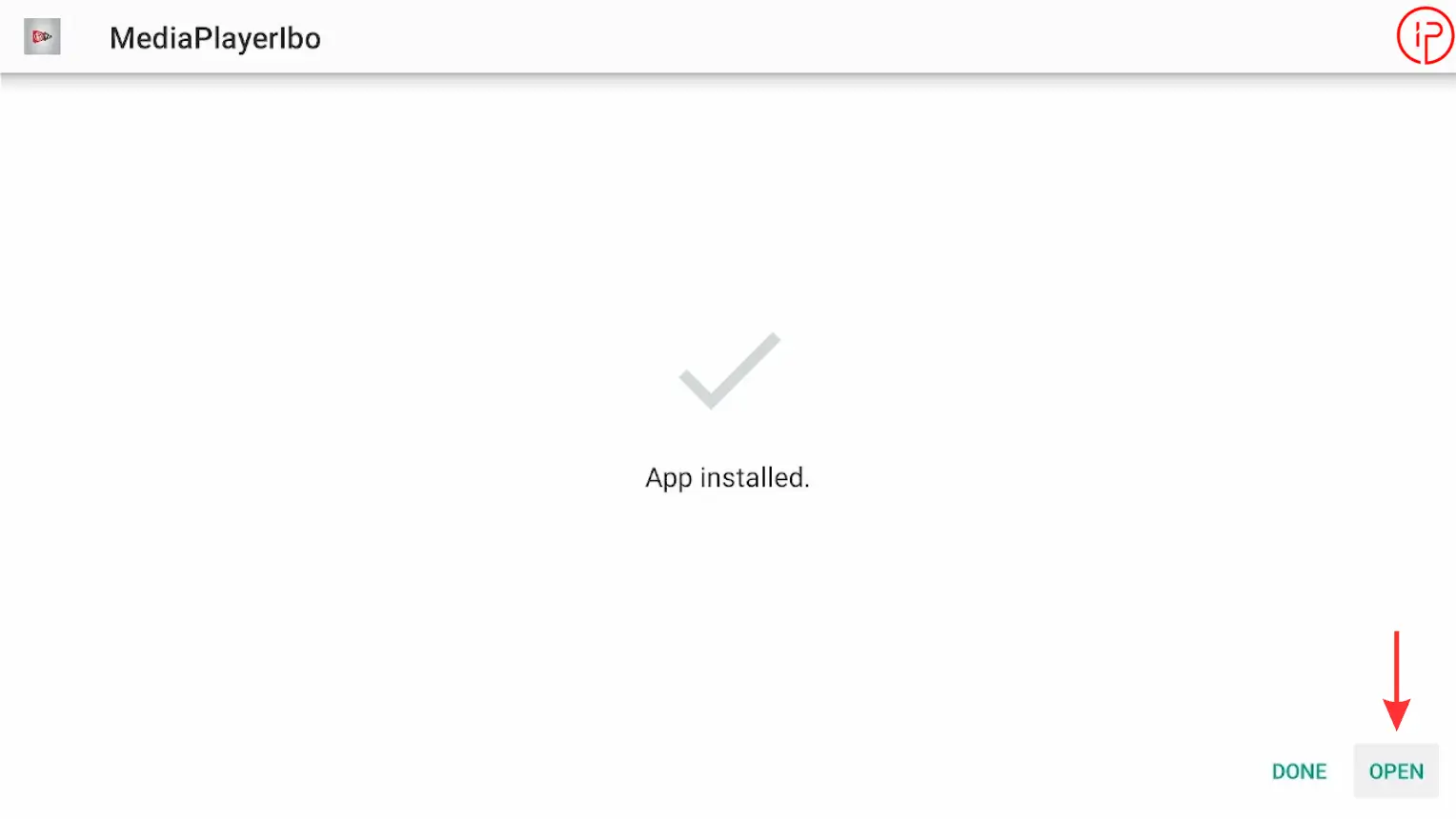
10. Open the App
Step 3: Get Free M3U PTV Playlist Instantly
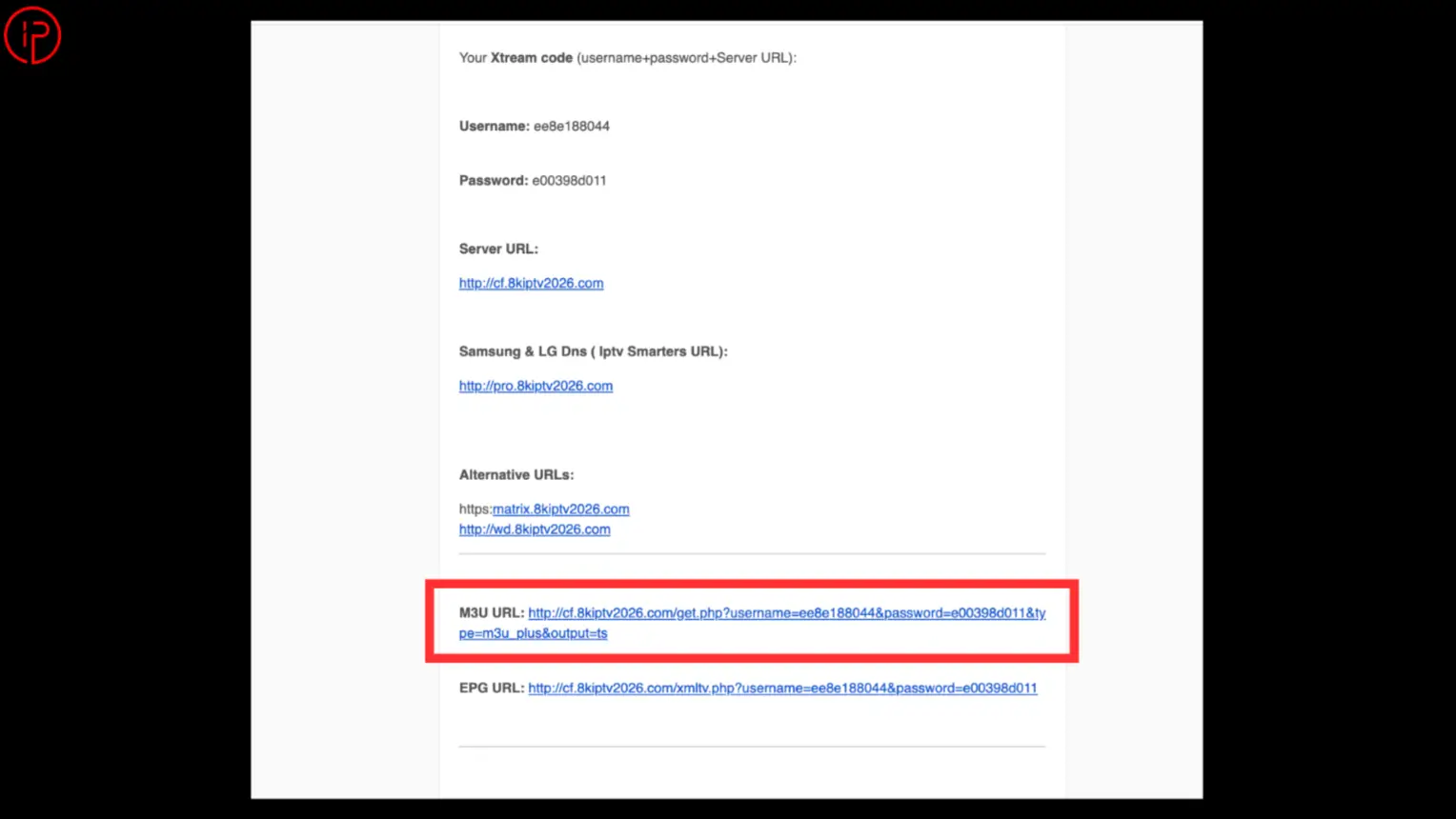
IBO Player is a media player application and does not include any channels, movies, or TV content. To begin streaming, you’ll need a valid IPTV playlist or portal credentials from a trusted IPTV provider. We’ve reviewed and recommended some of the best IPTV providers that offer instant 24 to 36-hour free trials, allowing you to test their service before committing to a subscription.
Step 4: Add IPTV Playlist on IBO Player App
Now it’s time to connect your IPTV subscription to IBO Player using the M3U URL or Xtream Codes credentials provided by IPTV Providers.
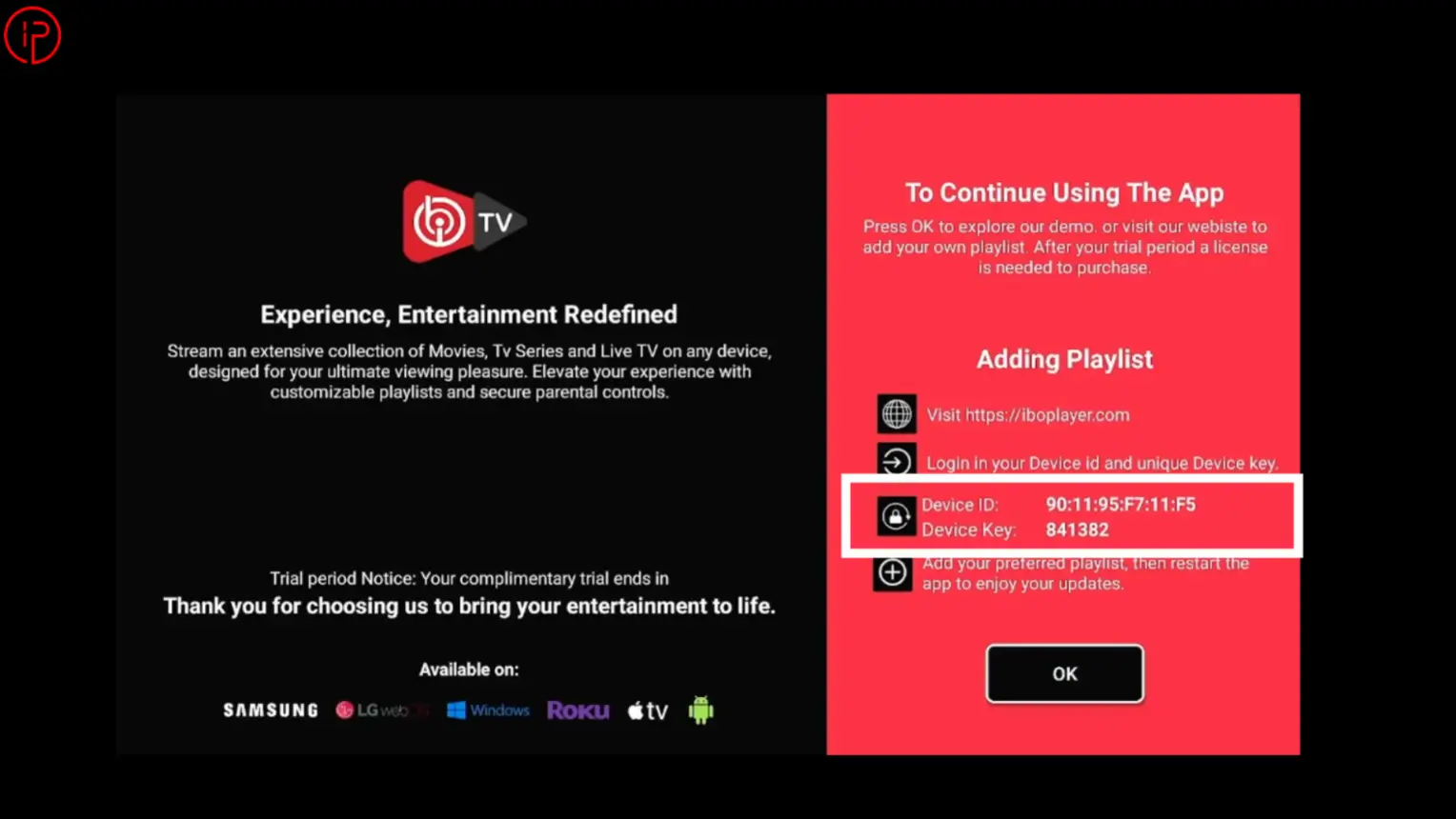
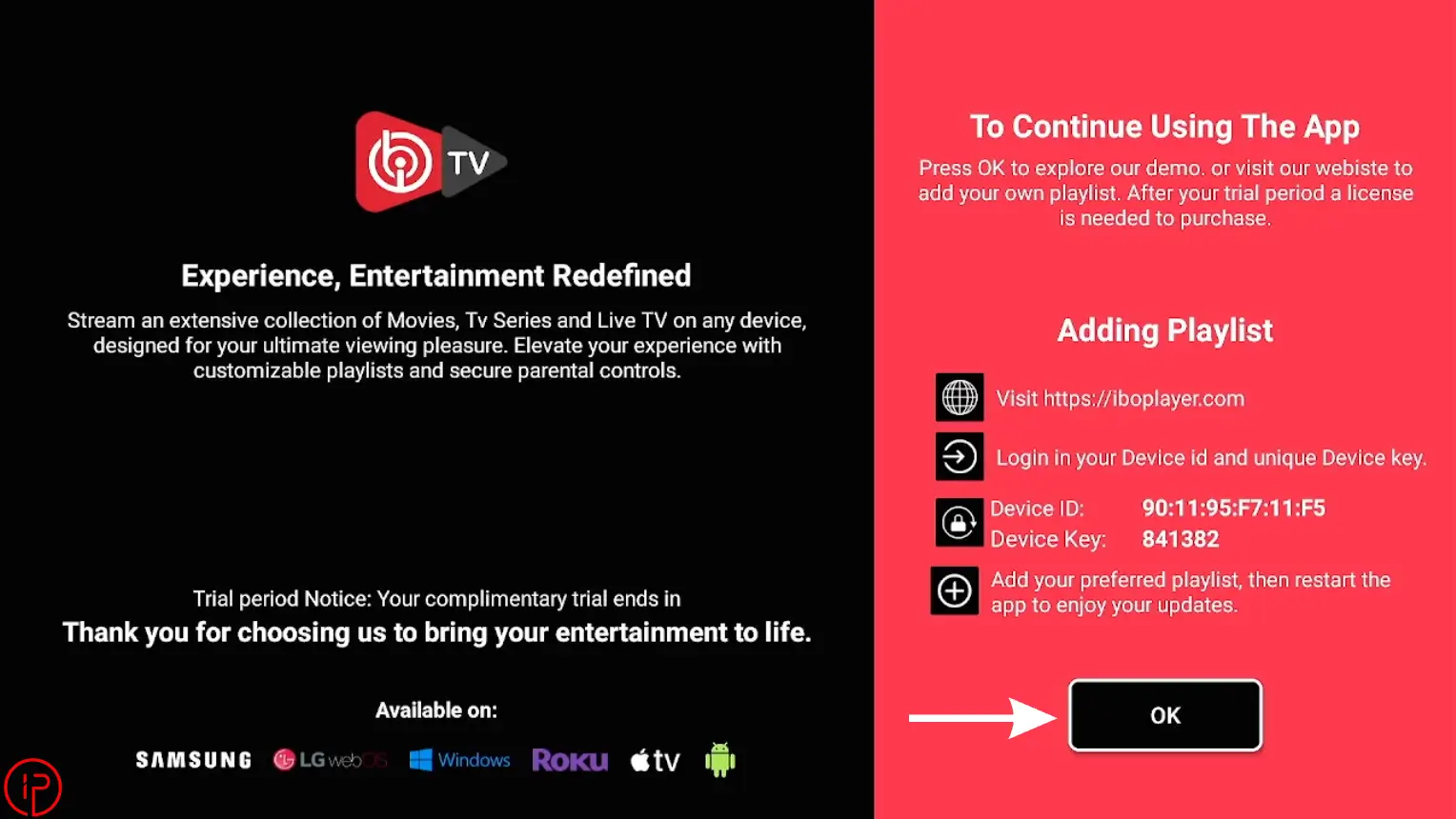
1. Open IBO Player and note your MAC Address and Device Key.
2. Copy the M3U playlist URL provided by IPTV service.
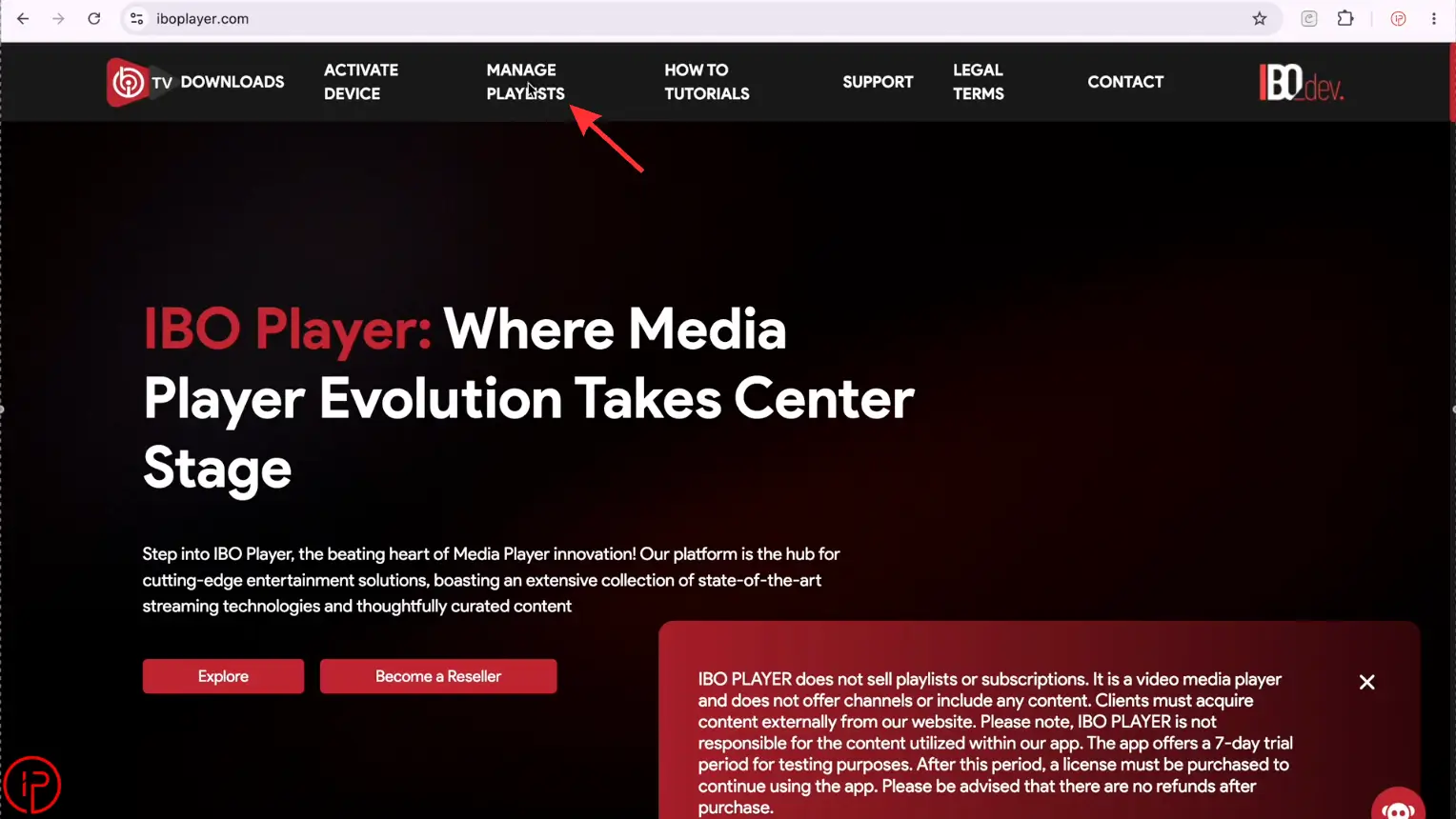
3. Go to the IBO Player website (iboplayer.com) and click Manage Playlists.
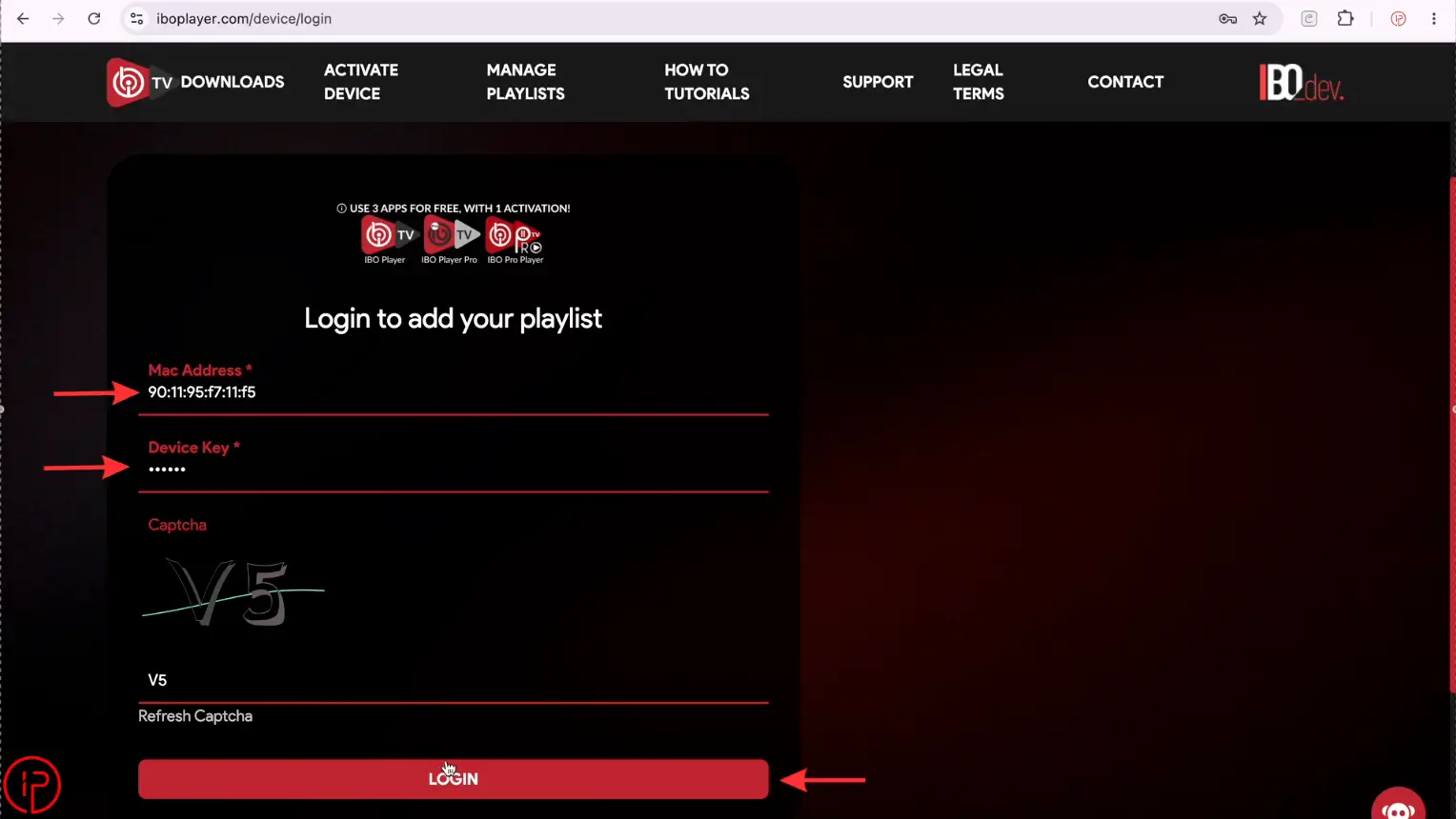
4. Enter your MAC Address, Device Key, and complete the CAPTCHA, then click Login.
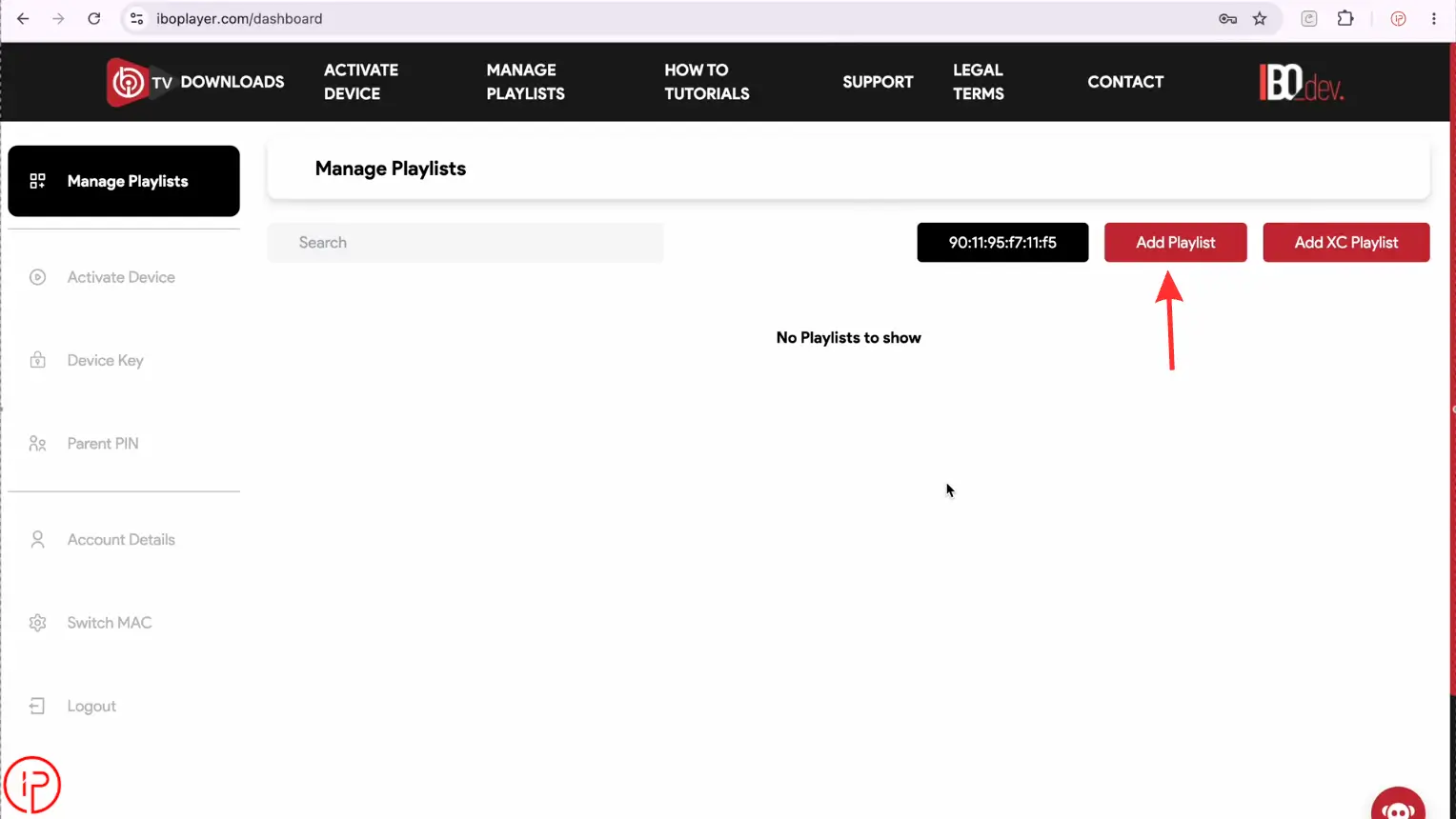
5. Click Add Playlist.
6. Enter a Playlist Name, paste your M3U URL, then click Add Playlist.
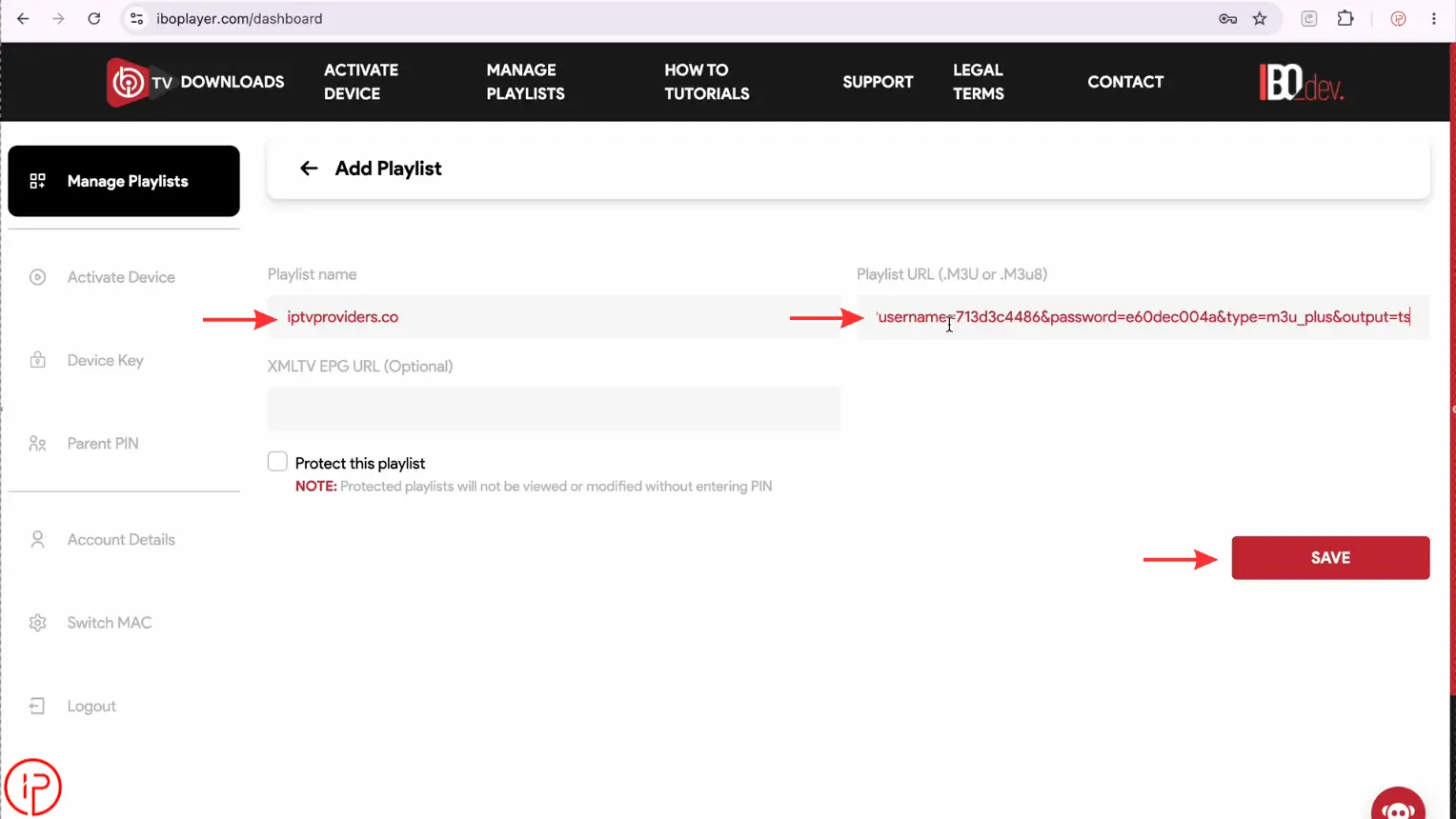
7. Your playlist has been added successfully.
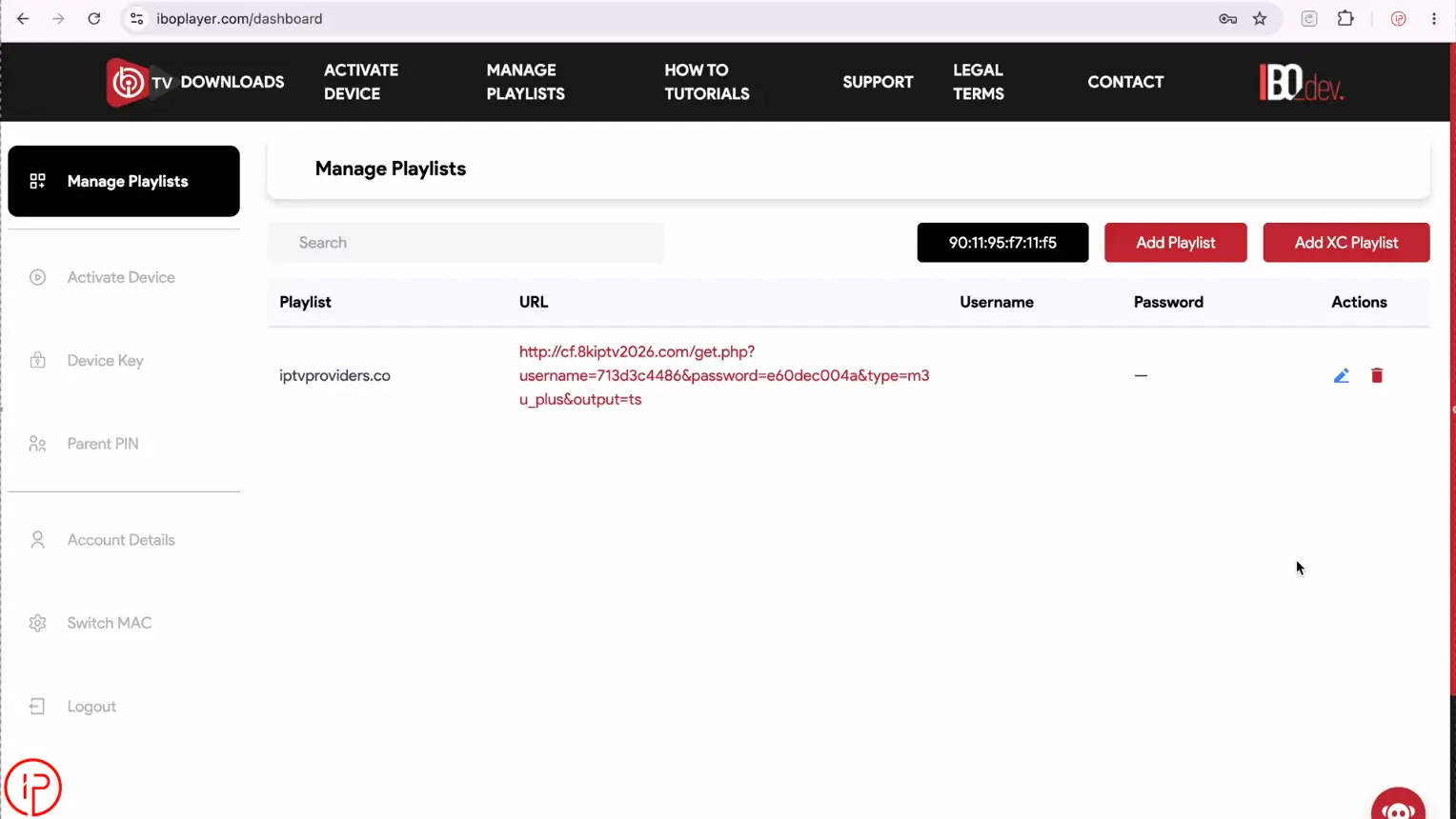
8. Return to the IBO Player app and click OK to refresh and load your playlist.
9. Choose Live TV
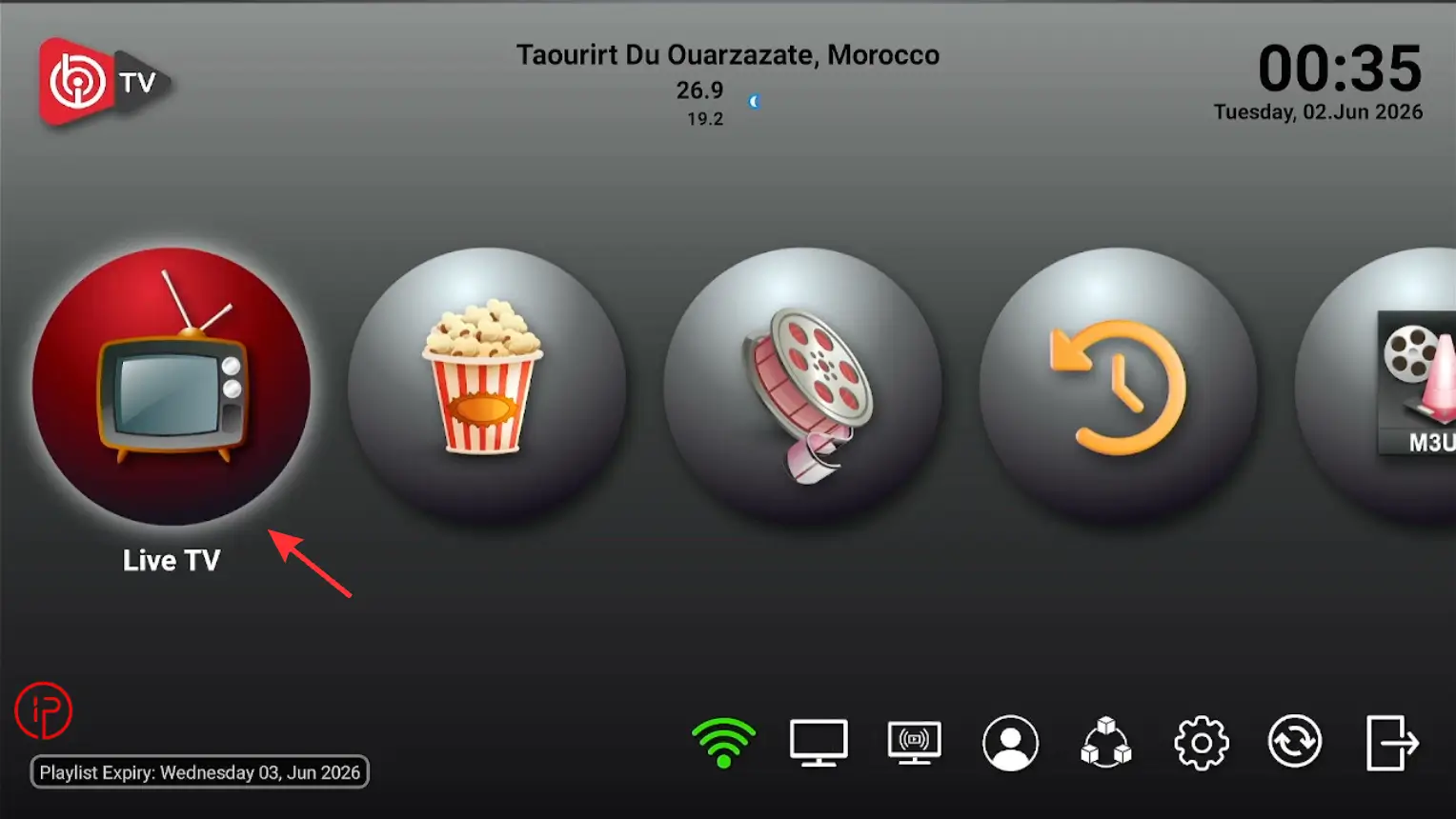
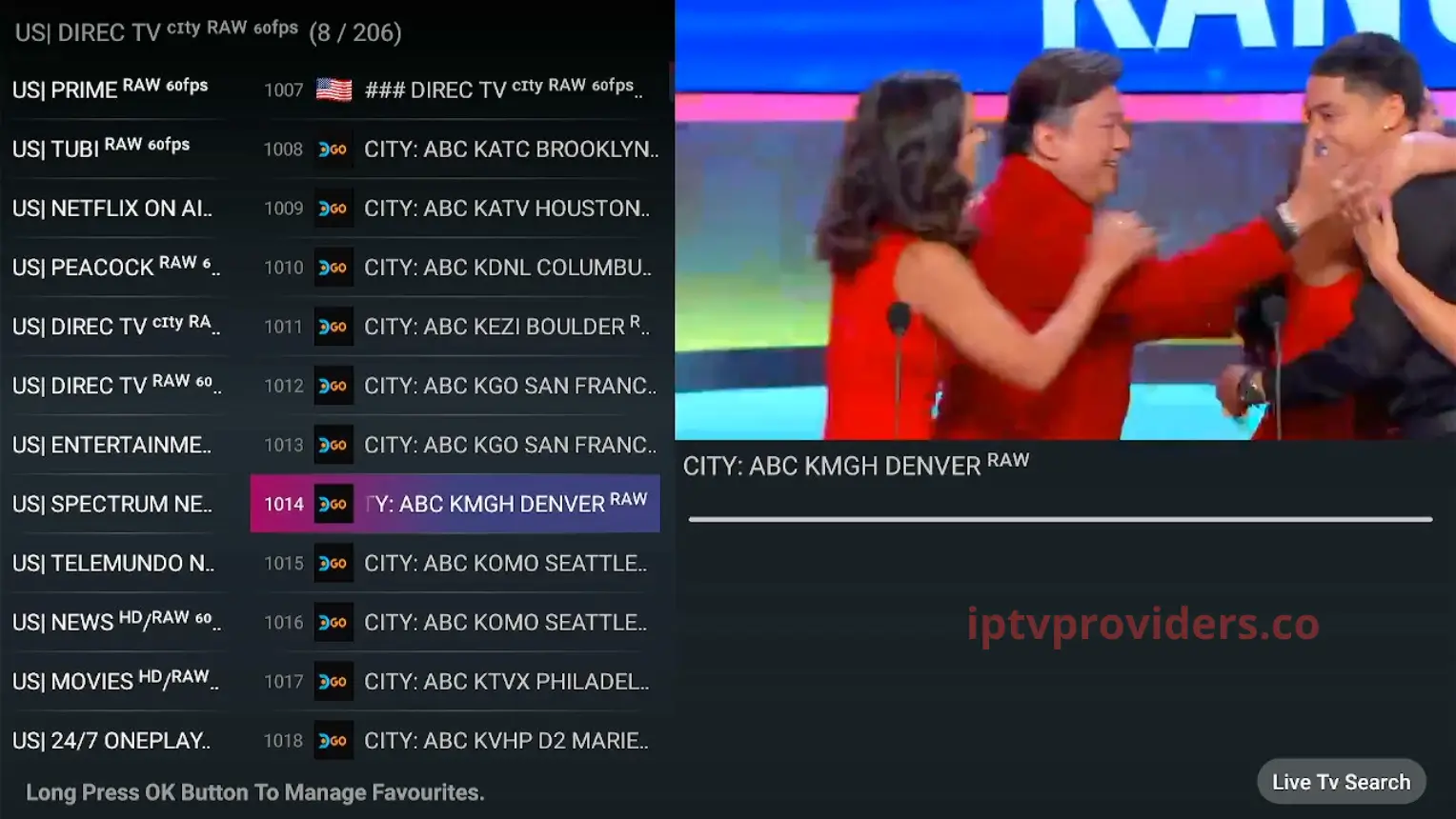
10. You can now enjoy live TV channels, movies, and TV series on IBO Player.
Watch Our Video Tutorials:
Step 1: How to Install Downloader on Firestick
Step 2: How to Install IBO Player on Firestick
Step 3: How to Get a Free IPTV Playlist
Step 4: How to Add IPTV Playlist on IBO Player
Alternatives to IBO Player
IBO Player is a powerful IPTV player designed for FireStick, Smart TVs, and Android devices, offering smooth streaming, simple playlist integration, and support for live TV channels, movies, and series.
8K App
8K App is a feature-rich IPTV player that offers a smooth streaming experience for live TV, movies, and series. It supports high-quality playback, easy playlist integration, and a user-friendly interface across multiple devices.
IPTV Smarters Pro
TiviMate
TiviMate is another powerful IPTV player known for its modern interface and smooth streaming performance. It supports live TV, movies, series, EPG integration, and customizable playlists, making it one of the top choices for IPTV users on FireStick and Android TV devices.
Learn More
If you’d like to learn more about IBO Player, including installation guides, setup tutorials, updates, and troubleshooting tips, visit the official IBO Player website. You’ll find helpful resources for installing the app, adding IPTV playlists, resolving common issues, and optimizing your streaming experience.
Frequently Asked Questions
New users can typically access a free trial before purchasing an activation license. After the trial period ends, activation is required to continue using all features. The activation process is simple and provides uninterrupted access to playlist management, streaming, and other advanced features.
No, the app does not come with live TV channels, movies, or series. It functions as a media player that allows users to stream content from their own IPTV subscriptions. To start watching, you'll need a valid playlist or login credentials provided by an IPTV service.
The app supports both M3U playlist URLs and Xtream Codes API credentials. This allows users to connect to a wide range of IPTV providers and quickly import channels, movies, and series without complicated configuration.
Yes, the app allows users to add and manage multiple IPTV playlists on a single device. This is especially useful if you have subscriptions from different providers or want to separate content categories. You can switch between playlists and access all your content without needing to install multiple IPTV applications.
Yes, you can access movies and TV series if they are included in your IPTV subscription. Many IPTV providers offer extensive video-on-demand libraries containing thousands of movies, TV shows, documentaries, and complete series collections. Once your playlist is added, this content will appear automatically within the app.