
How to Fix IPTV Buffering and Freezing
TroubleshootingUpdated October 31, 20263 min read
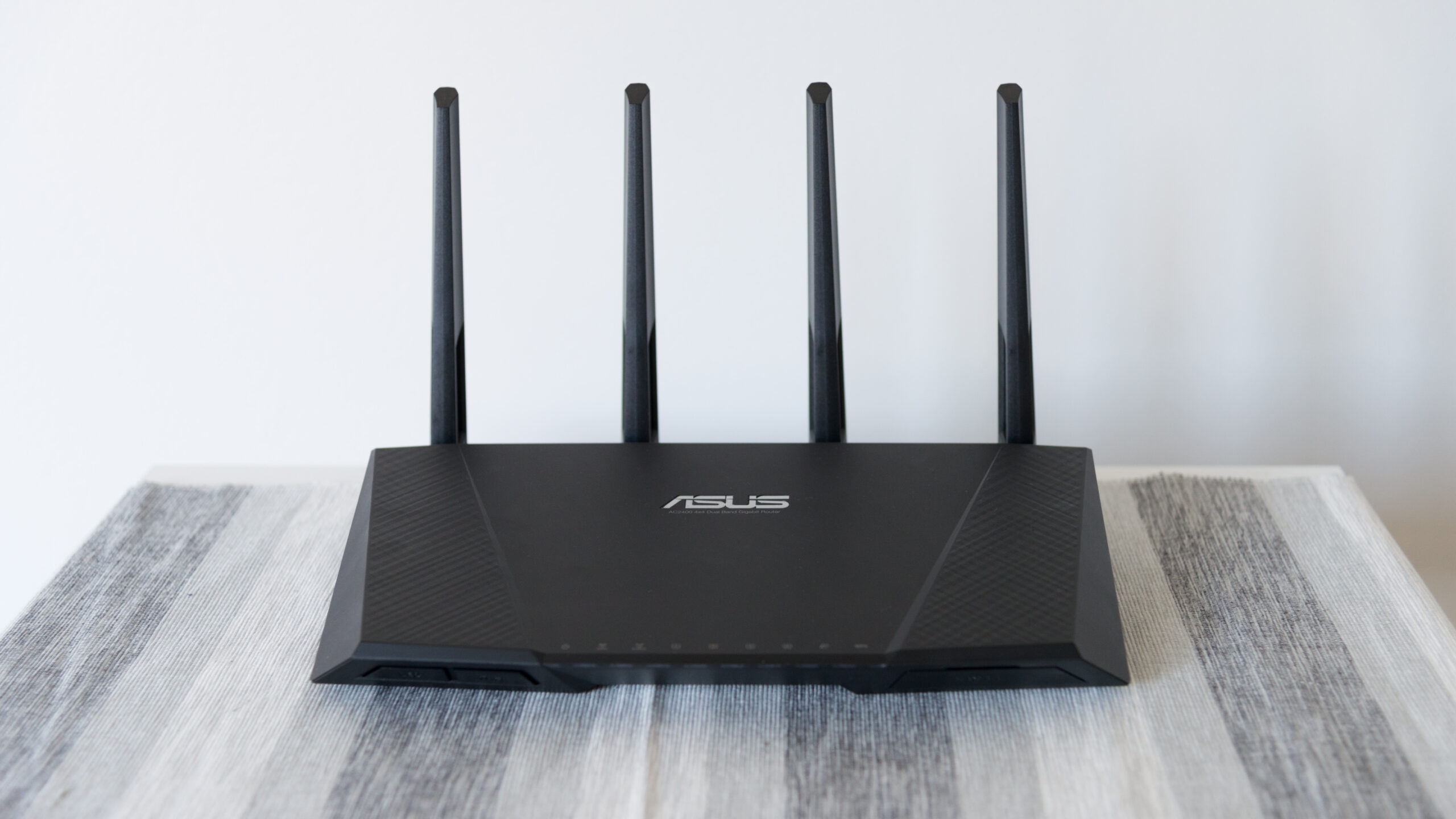
Buffering happens when video arrives more slowly than it plays. The cause is almost always one of three things: your home network, your device, or the service’s servers. Work through the checks below in order; the first five fix most cases.
First, Find Out Where the Problem Is
- Every channel buffers: likely your connection or device.
- Only some channels buffer: likely those streams at the service.
- It buffers mainly in the evening or during big matches: likely server load at the service, or congestion at your internet provider.
- Other streaming apps (YouTube, Netflix) also buffer: it’s your network.
1. Test Your Internet Speed
Run a speed test on the device itself, not your phone. As a guide you need at least 10 Mbps for HD and 25 Mbps for 4K per screen. If the result is far below what you pay for, restart your router and test again.
2. Use Ethernet or 5 GHz Wi-Fi
Wi-Fi is the most common cause. Connect with an Ethernet cable if you can (a Firestick needs an Ethernet adapter). Otherwise use the 5 GHz band and move the router or device so there are fewer walls between them.
3. Restart Everything
Unplug the router and the streaming device for 60 seconds, then power on the router first. This clears memory leaks and refreshes your connection.
4. Clear the App Cache
On Android and Fire TV: Settings > Applications > Manage Installed Applications > [app] > Clear cache. Don’t choose Clear data unless you’re ready to sign in again.
5. Close Background Apps and Free Up Storage
Low memory makes playback stutter, especially on Fire TV Stick Lite and basic Android boxes. Close other apps and keep at least 1 GB of storage free.
6. Change the Stream Format
Many apps let you choose between MPEG-TS and HLS (m3u8). If one format buffers, try the other. In an M3U link this is the output=ts or output=m3u8 part.
7. Increase the Buffer Size
Some players, including TiviMate, have a buffer size setting under playback options. A larger buffer starts slightly slower but survives short drops in speed.
8. Switch the Video Decoder
If video stutters while audio plays smoothly, change the player between hardware and software decoding, or try an external player such as VLC.
9. Lower the Quality
If your service offers SD, HD and FHD versions of a channel, try a lower one during busy hours.
10. Change Your DNS
A slow DNS server delays connections to streams. Try a public DNS such as Cloudflare (1.1.1.1) or Google (8.8.8.8) in your router or device network settings.
11. Check for Internet Provider Throttling
If streams buffer only at certain times while speed tests look fine, your provider may be slowing video traffic. A reputable VPN can show whether that’s happening, though it may also reduce speed.
12. Contact Your Service
If everything above checks out, the problem is likely on the service’s side. Tell them which channels buffer and at what times. A reliable, licensed service will have a support channel and status updates.
Frequently Asked Questions
Evening is peak time for both internet providers and IPTV servers. Higher load on either side causes buffering. A wired connection and a larger buffer help on your side.
Only if your internet provider is throttling video. Otherwise a VPN adds overhead and can make buffering worse.
About 10 Mbps per HD stream and 25 Mbps per 4K stream, with extra headroom for other devices in your home.