
Common IPTV Error Messages and How to Fix Them
TroubleshootingUpdated October 31, 20263 min read
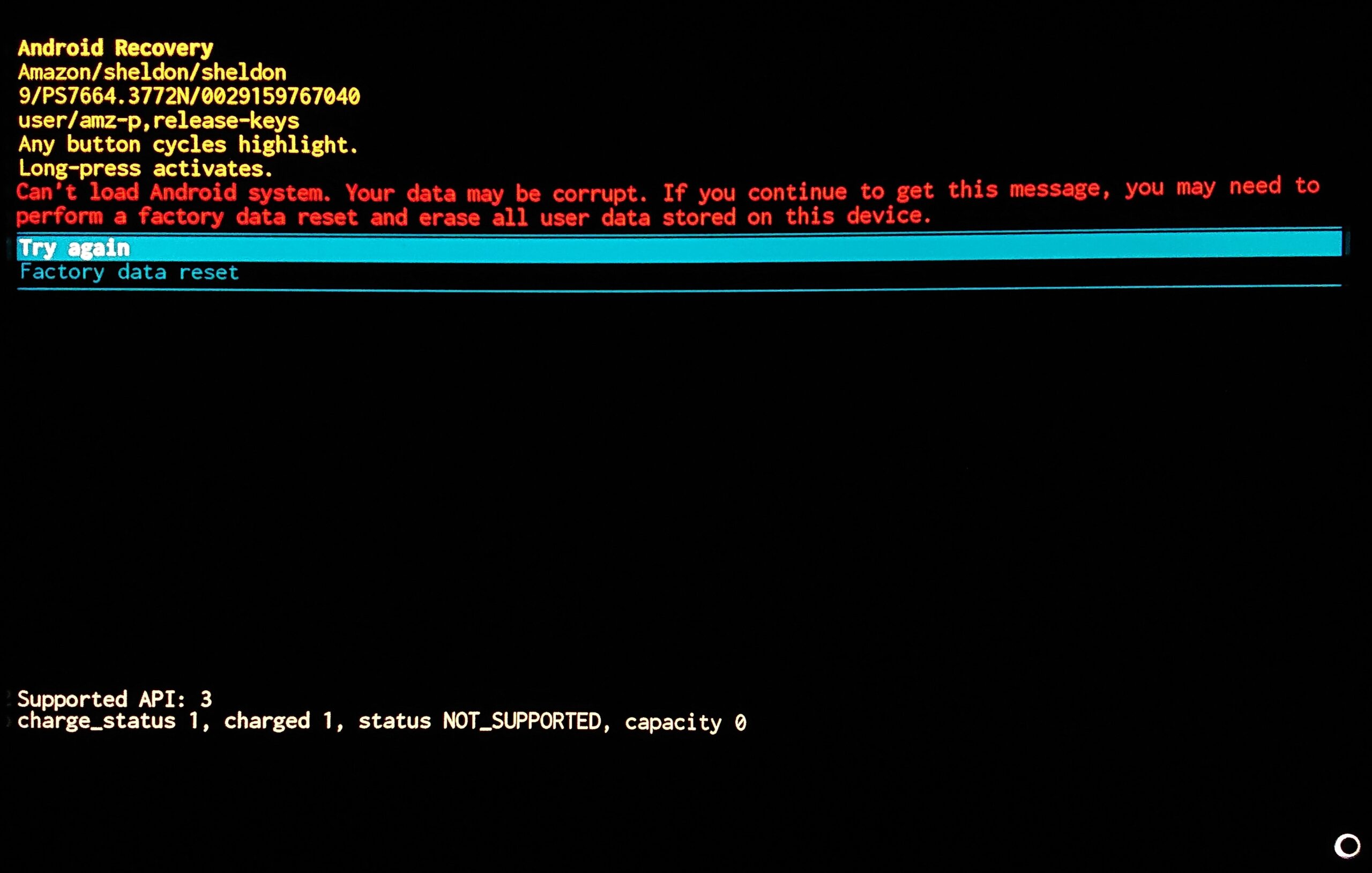
Error messages look cryptic, but most of them tell you exactly where the problem is. Find the message you’re seeing below for its likely cause and fix.
Error Codes at a Glance
| Error | Usual meaning | First thing to try |
|---|---|---|
| Authorization failed / Invalid username or password | Login rejected | Re-enter login; check subscription |
| HTTP 401 Unauthorized | Login wrong or expired | Check credentials and expiry date |
| HTTP 403 Forbidden | Access refused: connection limit, region or IP block | Close other streams; contact service |
| HTTP 404 Not Found | Channel or link no longer exists | Refresh playlist; get a new link |
| HTTP 500, 502, 503 | Server problem at the service | Wait and retry later |
| Connection timed out / Server not found | Wrong server URL or network block | Check URL and port; try another network |
“Authorization Failed” or “Invalid Username or Password”
The service rejected your login. Re-enter the username and password carefully (both are case-sensitive), check for spaces, and confirm your subscription hasn’t expired. If you changed your password in your account, update it in the app too.
HTTP 401 and 403
401 means the login wasn’t accepted. 403 means the server understood the request but refuses it. Common reasons for 403 are using more devices than your plan allows, or the service restricting access by region. Close the app on other devices and try again before contacting your service.
HTTP 404 Not Found
The channel or playlist address no longer exists. Reload the playlist in your app, or ask your service for an updated M3U link. A single channel showing 404 usually means that stream was moved or removed.
HTTP 500, 502 and 503
These are server-side errors at the service. There’s nothing to fix on your device; wait and try again. If they continue for hours, contact your service.
“Connection Timed Out” or “Server Not Found”
Your device couldn’t reach the server. Check the server URL, including the http:// or https:// prefix and the port number. Try a different network, such as a phone hotspot, and change DNS to 1.1.1.1 or 8.8.8.8. More steps: IPTV not working.
“Playback Error”, Black Screen or No Sound
The stream reached your device but the player can’t decode it. Switch between hardware and software decoding, change the stream format (TS or HLS), or try VLC as an external player. Older devices may not support HEVC/H.265 or 4K streams.
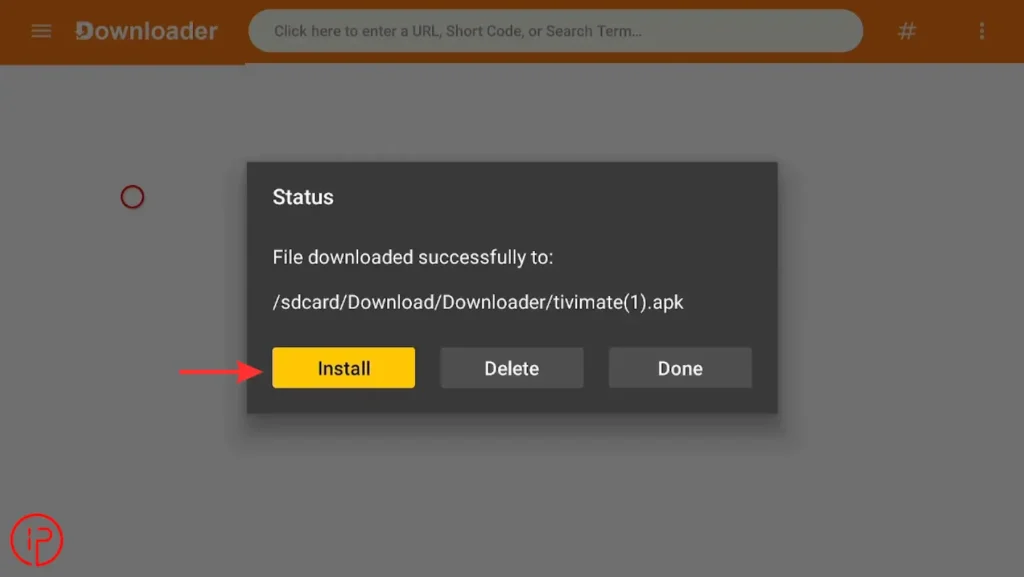
“App Not Installed” on Firestick or Android
- Free up storage and try again.
- Uninstall any older version of the same app first.
- Make sure you downloaded the version for your device type (Android TV versus phone).
- Check that installing unknown apps is allowed for Downloader. See IPTV on Firestick.
Frequently Asked Questions
The server refused access. It’s often caused by exceeding your plan’s connection limit or by a region restriction.
The subscription may have expired, the service may have reset your password, or the server URL may have changed.
No. Error messages are just responses from the server or app. Only install apps from official sources to keep your device safe.