
How to Set Up IPTV on a Samsung Smart TV
DevicesUpdated October 31, 20263 min read
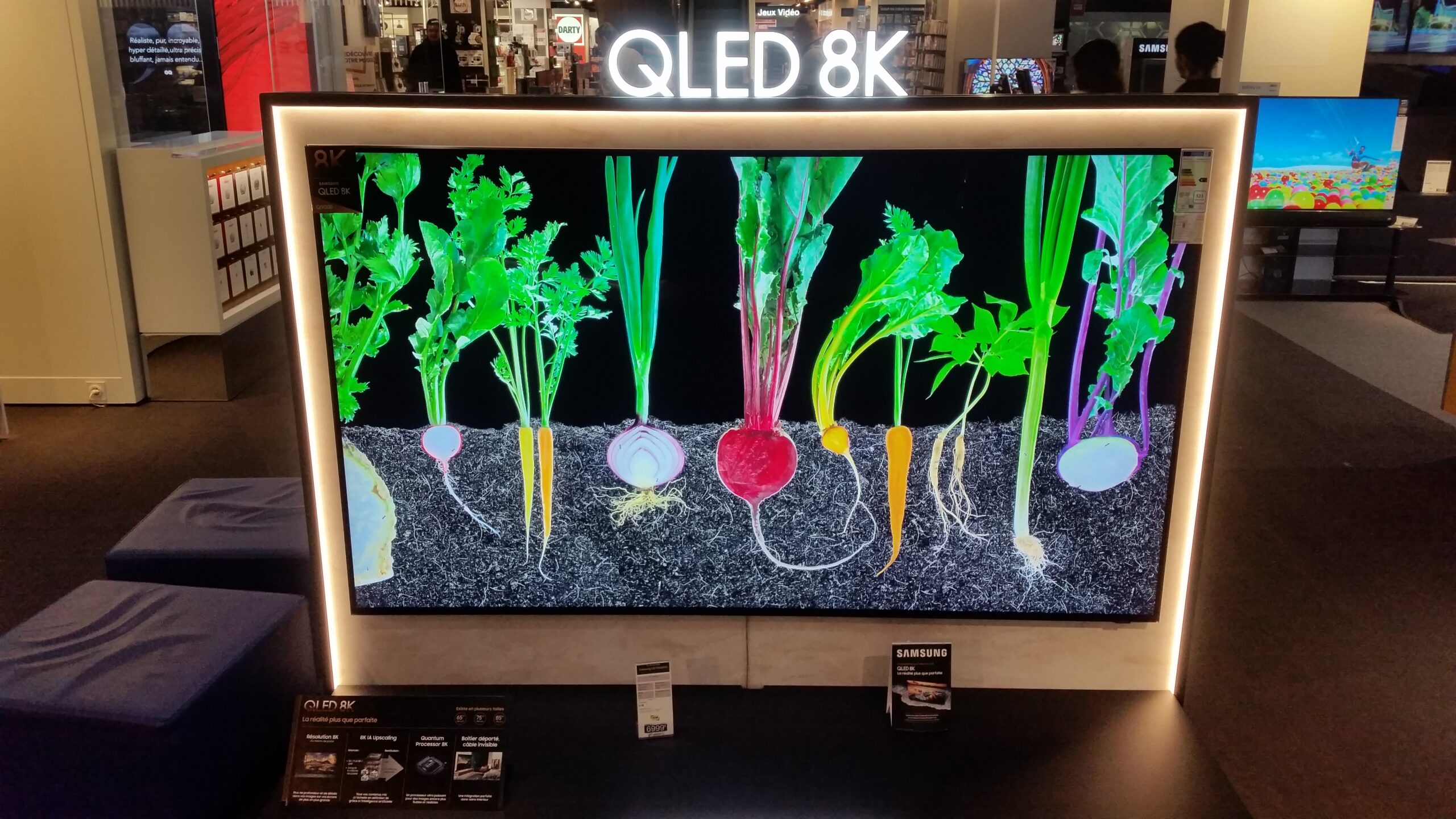
Samsung Smart TVs run Tizen, Samsung’s own operating system. Unlike a Firestick, Tizen doesn’t install Android apps, so you can only use IPTV players that are in the Samsung Apps store. Several are, and setup doesn’t need any extra hardware.
What You Need
- A Samsung Smart TV from roughly 2017 or later, connected to the internet.
- Your Xtream Codes login or M3U playlist link.
- A phone or computer to upload your playlist to the app’s website.
IPTV Player Apps Available on Samsung TVs
The apps in the Samsung store change by country and TV model year. Apps that are commonly available include IBO Player, Smart IPTV and Hot IPTV. Most offer a free trial and then charge a one-time activation fee per TV; check the developer’s website for the current price.
Step 1: Install the App
- Press Home on your remote and open Apps.
- Select the search icon and type the app name, for example “IBO Player”.
- Select the app and choose Install, then Open.
Step 2: Note Your MAC Address and Device Key
When the app opens for the first time, it shows a MAC address and usually a device key. These identify your TV to the app developer. Write them down or take a photo with your phone.
Step 3: Add Your Playlist on the App’s Website
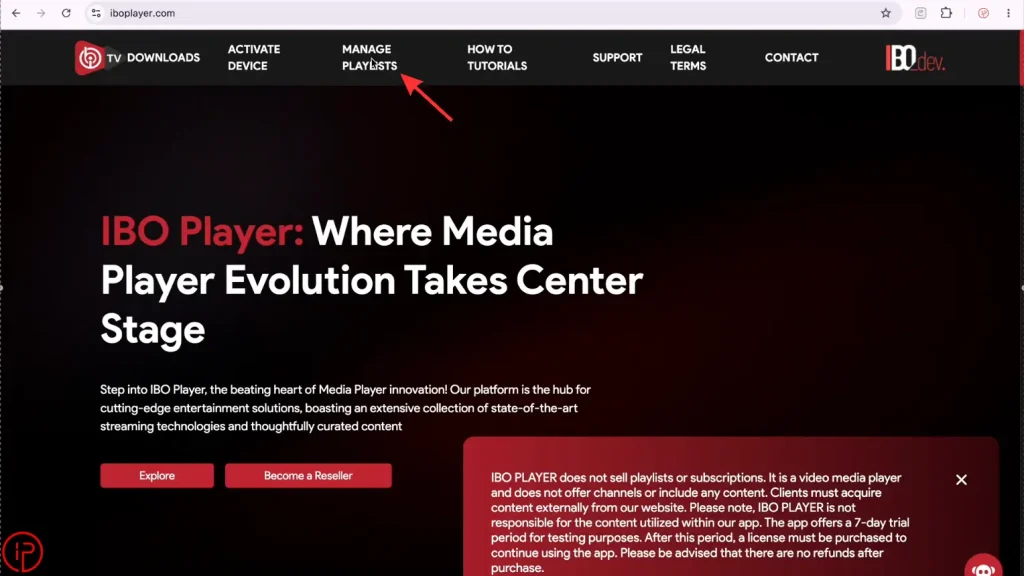
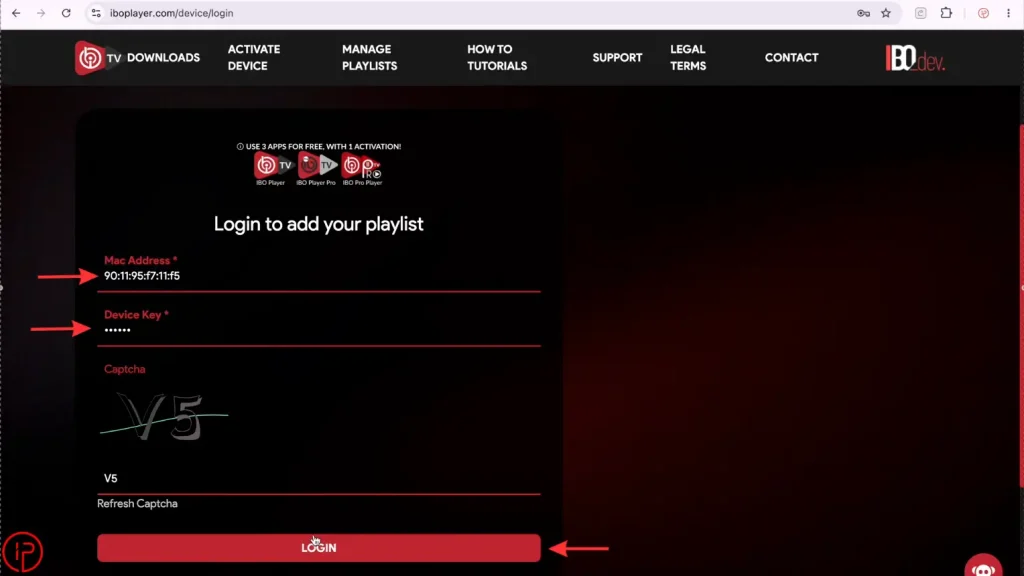
- On your phone or computer, go to the app developer’s official website and open its playlist or device page.
- Enter your MAC address and device key.
- Paste your M3U link, or choose Xtream Codes and enter your server URL, username and password if the site supports it.
- Save, then restart the app on your TV. Your channels should load.
Adding the playlist on a website is normal for TV apps, because typing long links with a remote is impractical.
Fixing Common Samsung TV IPTV Problems
The app won’t open or freezes
Unplug the TV for 1 minute. If it persists, delete and reinstall the app, then try Reset Smart Hub in Settings > Support > Device Care > Self Diagnosis. Resetting Smart Hub signs you out of apps, so note your logins first.
Channels load but buffer
Samsung TVs often have slower Wi-Fi than streaming sticks. Use an Ethernet cable if you can, and see how to fix IPTV buffering.
“Playlist not found” or no channels
Check that the MAC address you entered on the website matches the one in the app exactly, then reload the playlist. See IPTV not working for more fixes.
Alternatives for Samsung TV Owners
- Plug in a streaming device. A Firestick or Android TV box gives you more apps, including TiviMate.
- Samsung TV Plus is built into most Samsung TVs and offers free, licensed live channels with no setup. See free live TV streaming services.
Frequently Asked Questions
No. TiviMate is an Android app and Samsung TVs run Tizen. Use a Samsung-store app such as IBO Player, or connect a Firestick or Android TV device.
No. Tizen does not run Android APK files.
The developer uses it to link your playlist and activation to your TV, so you can add the playlist from a phone or computer.
Availability varies by region and model. Search the Samsung Apps store on your TV to check.